HomeHome Spyware DatabaseSpyware Database MightyCleaner Removal Guide"MightyCleaner Removal Guide"

MightyCleaner Removal Guide

line

MightyCleaner Description

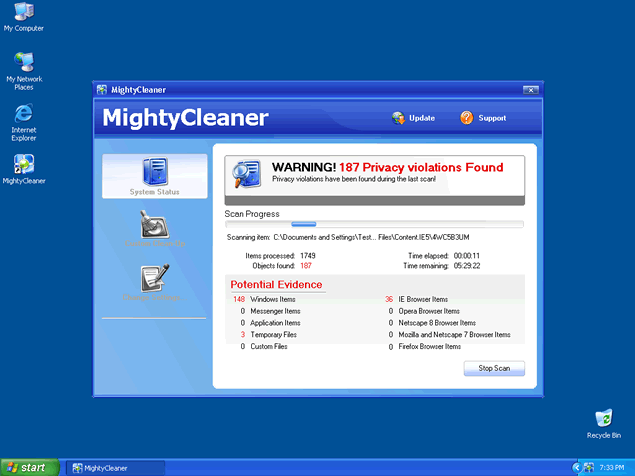
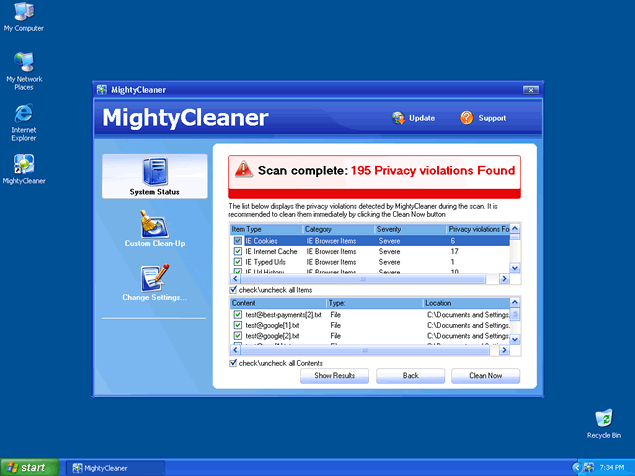
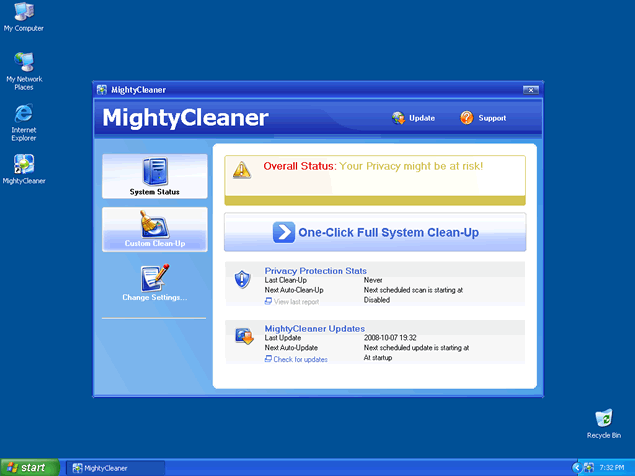
MightyCleaner (Mighty Cleaner) is not mighty by any means. MightyCleaner is a fake anti-spyware program that uses fake system messages as a scare tactic. MightyCleaner attempts to get computer users to believe that they must purchase the full version of MightyCleaner to "fix" their computer.

Mighty Cleaner may come from a Trojan infection or a malicious website where Mighty Cleaner is advertised as a spyware removal tool. MightyCleaner may be difficult to manually remove in some cases. It is recommended that you detect and remove Mighty Cleaner with a good spyware scan and removal tool.
Disclaimer:

  1. SpywareRemove.com IS NOT associated, affiliated, consorted, or connected with the publishers MightyCleaner.
  2. We object, reject, and disapprove all the malicious and objectionable business practices of the publishers of MightyCleaner.
  3. Our goal and objective is to completely eliminate the promotion of MightyCleaner and other malware publishers off the Internet. In addition, we seek the complete deletion of all the malware programs, including all their polymorphic variants, which are developed and distributed all over the Internet, in the same manner as the publishers of MightyCleaner.
The readers of this posting should not confuse, mistake, or associate this article to be a promotion or advertisement of MightyCleaner, since the aim of this posting is to educate users on how to detect and eliminate MightyCleaner off their computer. Any information provided is "as is" for reference and educational purposes only.

How can I Detect MightyCleaner?

The most common spyware removal tactic is to uninstall MightyCleaner by using the "Add/Remove Programs" utility. However, as there may still be hidden MightyCleaner files, it's possible that MightyCleaner will reappear after reboot. Follow the MightyCleaner detection and removal methods below.

MightyCleaner or Mighty Cleaner Automatic Detection (Recommended)

Is your PC infected with MightyCleaner? To safely & quickly detect MightyCleaner, we highly recommend you...

Download SpyHunter's Malware Scanner Download SpyHunter's Malware Scanner.

SpyHunter's free version is only for malware detection. If SpyHunter's malware scanner detects MightyCleaner on your PC, you will need to purchase SpyHunter's malware removal tool to remove MightyCleaner and other malware threats.

MightyCleaner Manual Removal Instructions

Below is a list of MightyCleaner manual removal instructions and MightyCleaner components listed to help you remove MightyCleaner from your PC. Backup Reminder: Always be sure to back up your PC before making any changes.

Note: This manual removal process may be difficult and you run the risk of destroying your computer. We recommend that you use SpyHunter's malware detection tool to check for MightyCleaner.

Step 1 : Use Windows File Search Tool to Find MightyCleaner Path

  1. Go to Start > Search > All Files or Folders.
  2. In the "All or part of the the file name" section, type in "MightyCleaner" file name(s).
  3. To get better results, select "Look in: Local Hard Drives" or "Look in: My Computer" and then click "Search" button.
  4. When Windows finishes your search, hover over the "In Folder" of "MightyCleaner", highlight the file and copy/paste the path into the address bar. Save the file's path on your clipboard because you'll need the file path to delete MightyCleaner in the following manual removal steps.
    Read more about How to Find MightyCleaner with File Search Tool


To remove MightyCleaner, you must first stop any MightyCleaner processes that are running in your computer's memory. To stop all MightyCleaner processes, press CTRL+ALT+DELETE to open the Windows Task Manager. Click on the "Processes" tab, search for MightyCleaner, then right-click it and select "End Process" key.

To delete MightyCleaner registry keys, open the Windows Registry Editor by clicking on the Windows "Start" button and selecting "Run." Type "regedit" into the box and click "OK." Once the Registry Editor is open, search for the registry key "HKEY_LOCAL_MACHINE\Software\MightyCleaner." Right-click this registry key and select "Delete."

Finally, to completely get rid of MightyCleaner, you must manually remove other MightyCleaner files. These MightyCleaner files can be in the form of EXE, DLL, LSP, TOOLBAR, BROWSER HIJACK, and/or BROWSER PLUGIN. For example, MightyCleaner might create a file like
%PROGRAM_FILES%\MightyCleaner\MightyCleaner.exe. Locate and remove these files.

MightyCleaner Recommendation

RECOMMENDED: To avoid the unnecessary risk of damaging your computer, we highly recommend you use a good malware remover to track MightyCleaner and automatically remove MightyCleaner as well as other spyware, adware, trojans, and virus threats in your PC.

If you believe you have MightyCleaner installed on your computer, check for MightyCleaner with SpyHunter's Malware Scanner.


SpyHunter's free version is only for malware detection. To remove MightyCleaner and other malware threats, you will need to purchase SpyHunter's malware removal tool. Since new MightyCleaner files are constantly being released, it is normally advised to run SpyHunter's scanner weekly to get the latest updates on MightyCleaner and other malware threats.

To learn more on MightyCleaner, see our MightyCleaner resource section below.


More MightyCleaner Resources

What is Rogue AntiSpyware Programs?


MightyCleaner is a type of Rogue AntiSpyware Programs.

Rogue anti-spyware programs are fake applications that are cleverly disguised to behave like legitimate spyware removal programs. Rogue anti-spyware programs are usually created by hackers with the sole purpose of rendering a sale for the rogue application. Many rogue anti-spyware programs use deceiving tactics to entice computer users to purchase the rogue anti-spyware program. In many cases computer users do not realize that they have downloaded or installed a fake anti-spyware program until after the sale has taken place. Rogue Anti-Spyware Programs are bogus applications that usually require an extra effort to completely uninstall or remove from your system. Computer infections such as Trojans are known to install rogue anti-spyware programs which do not remove parasites or justify the abnormally high cost of the full version.

Think you have MightyCleaner? Run SpyHunter's malware scan and automatically detect MightyCleaner on your PC.

Back to Top

MightyCleaner Prevention Rules


Protect your computer from MightyCleaner and other spyware by following these four easy prevention rules.

Rule #1: Keep your Windows Security up-to-date

Microsoft provides updates weekly and can always be downloaded manually from the Microsoft website.
Tip: Regularly visit Windows Update and set your computer to receive security & critical updates automatically.

To get Microsoft Update, go to IE > Tools > Windows Update > Product Updates, and select "ALL High-Priority Security Updates" from the list.

Then open IE and go to Internet Options > Security > Internet, then press "Default Level", then OK. Now press "Custom Level."

Rule #2: Download and install a reliable anti-spyware software

A good anti-spyware software that recognizes current MightyCleaner spyware as well as other forms of spyware can can be the answer to all your security issues. Listed below is an anti-spyware program that can effectively reverse the damage of your computer and detect MightyCleaner automatically.

Download SpyHunter's Malware Scanner Download SpyHunter's Malware Scanner

SpyHunter's free version is only for malware detection. To remove MightyCleaner and other malware threats, you will need to purchase SpyHunter's malware removal tool.

Rule #3: Install and keep your firewall turned on

A firewall is essential for a complete protection of your PC. Make sure that your firewall is always turned on. A firewall can prevent unwanted software like MightyCleaner from infecting your computer.

Rule #4: Keep your anti-spyware definitions up-to-date

Since new MightyCleaner files can be created every day, it is important to keep your anti-spyware program up-to-date. Your anti-spyware scanner should have an update feature where with a click of a button you can get new spyware definitions instantly. Often, an anti-spyware software will open an update window reminding you that there are new updates available.

Back to Top


User Comments


There are no comments posted for this page.

Leave a Reply


*
To prove you're a person (not a spam script), type the security word shown in the picture.
Security Image

Back to Top

Remove MightyCleaner