How to Easily Reset a Forgotten iPhone Passcode
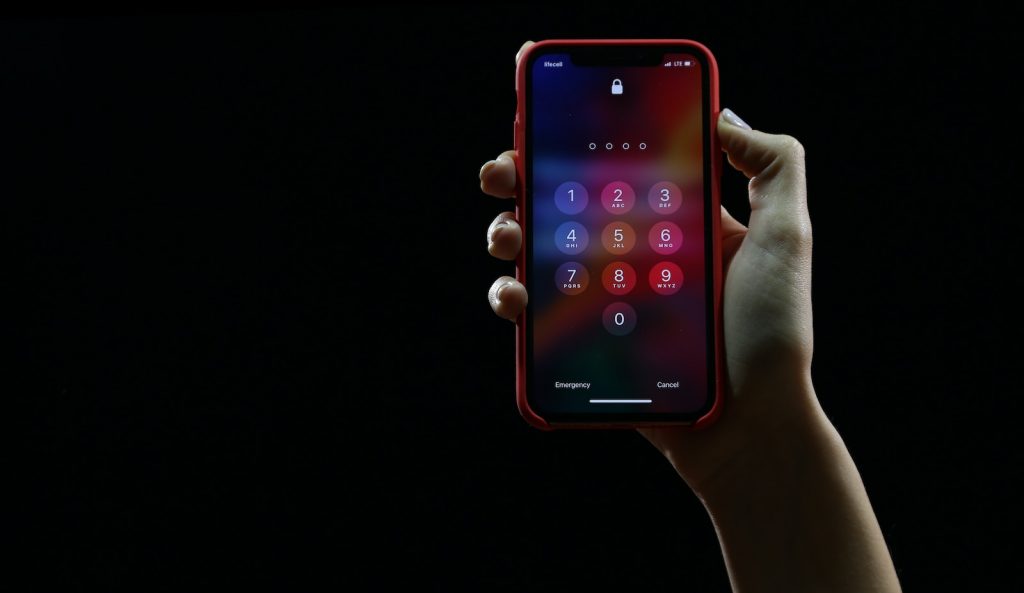
Resetting Forgotten iPhone Passcode
Forgetting the passcode to your iPhone can be a significant inconvenience, but there's a safety net for these occasions. You don't necessarily have to go straight to erasing the entire device and restoring it from backup. Instead, Apple provides a unique feature for users, enabling them to reset their forgotten passcode using their previous one within three days.
Use the old passcode for up to three days
If you forget your new iPhone passcode, you still have an opportunity to unlock your iPhone using your old passcode. This functionality can be used up to three days after changing the passcode, allowing you a grace period to remember your new passcode. This handy feature circumvents potentially serious implications, such as being permanently locked out of your device or having to go through the troublesome process of erasing and restoring your phone.
Tapping "Forgot Passcode?" on Lock Screen after multiple incorrect attempts
When you enter an incorrect passcode several times, an option will appear on the Lock Screen asking if you've forgotten your passcode. By tapping on "Forgot Passcode?" you can enter your previous passcode to gain access to your device for a limited time. This useful feature allows you to recall or reset your new passcode without causing any significant disruption to your device use.
Process of Using Old Passcode for Reset
Using an old passcode to unlock your iPhone is a straightforward process designed to rescue you when you forget your new passcode. Once you realize you don't remember your new passcode, you can activate the Passcode Reset feature and follow a few simple steps to access your device and create a new passcode.
Tap "Try Passcode Reset" after choosing "Forgot Passcode?"
If you find yourself locked out of your iPhone due to a forgotten passcode, the iOS 17 and later versions include a useful Passcode Reset function. Start by attempting to enter your passcode on the Lock Screen until the "[Device] Unavailable" screen appears, asking you to try again later. Once this occurs, tap the "Forgot Passcode?" option in the screen's bottom corner. This leads you to another option to try Passcode Reset. Tap on "Try Passcode Reset."
Enter old passcode
After selecting Passcode Reset, you'll progress to the next step, where you enter your old passcode. This feature relies on your old passcode and can be used only within a 72-hour window after setting your new passcode. It stands as a great solution to temporarily regain access to your phone. By entering your previous passcode, you can unlock the device.
Set a new passcode that is easy to remember
Upon entering your old passcode, immediate action is required. You will have to set a new passcode straightaway. It would be prudent to select a passcode you can recall easily to avoid a similar situation in the future. Follow the onscreen prompts to set a new passcode. After all, the purpose of the passcode is to secure your device without causing inconvenience to you.
Instantly Expiring Old Passcode
Should you wish for your old iPhone passcode to expire immediately rather than after the default 72-hour window, you can manually adjust the settings on your device. This feature comes in handy when you change your passcode to prevent unwanted access to your phone, and you don't want the old passcode to remain usable. Here's a quick guide on how to expire your previous passcode instantly.
Change settings in the Face ID & Passcode section
The first step in manually expiring your previous passcode is to head to your iPhone's Face ID & Passcode settings. From your home screen, navigate to the Settings app and tap the Face ID & Passcode option. This opens the control panel for all passcode-related configurations.
Enter a new passcode and choose to expire the previous passcode
You'll be asked to enter your new passcode once you're in the Face ID & Passcode settings. After confirming your new passcode, scroll down the settings until you reach the option "Expire Previous Passcode Now." Tap on this option. This action serves to manually retire your old passcode, eliminating the 72-hour period in which it remains usable.
Ensures only the current passcode will unlock the device
By following these steps and expiring your previous passcode, you ensure that only your current passcode will unlock your iPhone. The "Forgot Passcode?" option will no longer allow unlocking your device using the old passcode. This reduces residual vulnerabilities and keeps your device secure, allowing only the passcode you currently remember to unlock your iPhone.
Measures when an Old Passcode is Expired or Forgotten
Despite the utilities put in place by Apple to handle rare instances of forgetting one's iPhone passcode, there may come a time when these utilities cannot help. For instance, if the old passcode has expired and you've forgotten the new one, or 72 hours have elapsed since you last changed your passcode. In such scenarios, other measures have to be taken to regain access to your device.
Visit Apple's support page for guidance
Whenever you find yourself stuck and unable to unlock your iPhone, your first recourse should be Apple's official support page. The support page provides detailed instructions and advice, which is an excellent resource for troubleshooting. Apple maintains extensive documentation on what to do when you forget your passcode, offering a wealth of information to help you through your predicament.
The phone must be plugged into a computer and booted into recovery mode
One of the recovery options available when the old passcode has expired or 72 hours have elapsed since the last change is to boot your iPhone into recovery mode. This process is initiated by first plugging your phone into a computer. Once connected, you can boot the iPhone into recovery mode according to further instructions provided by Apple.
Restored from a recent iCloud backup
Once in recovery mode, the underlying procedure involves erasing the contents of your iPhone, thus removing the forgotten passcode. After erasing, you will be able to set up your device again. To ensure a seamless recovery process, it is vital to have recent backups freely available. Your most recent iCloud backup can be used to restore your data and settings onto the iPhone, mitigating the potential loss of information from the erasure process.