Protect Your Eyes: Understanding and Utilizing Screen Distance on Your iPhone
Importance of Screen Distance
In the modern digital age, we spend considerable hours fixed on the screens of our digital devices, be it the iPhone or iPad. The feature of Screen Distance in iOS 17 comes as a significant development to address the increasing concern of users' well-being and comfort. With this feature, Apple emphasizes the importance of maintaining an optimal distance from device screens.
Safeguarding Eyes by Warning About Close Device Proximity
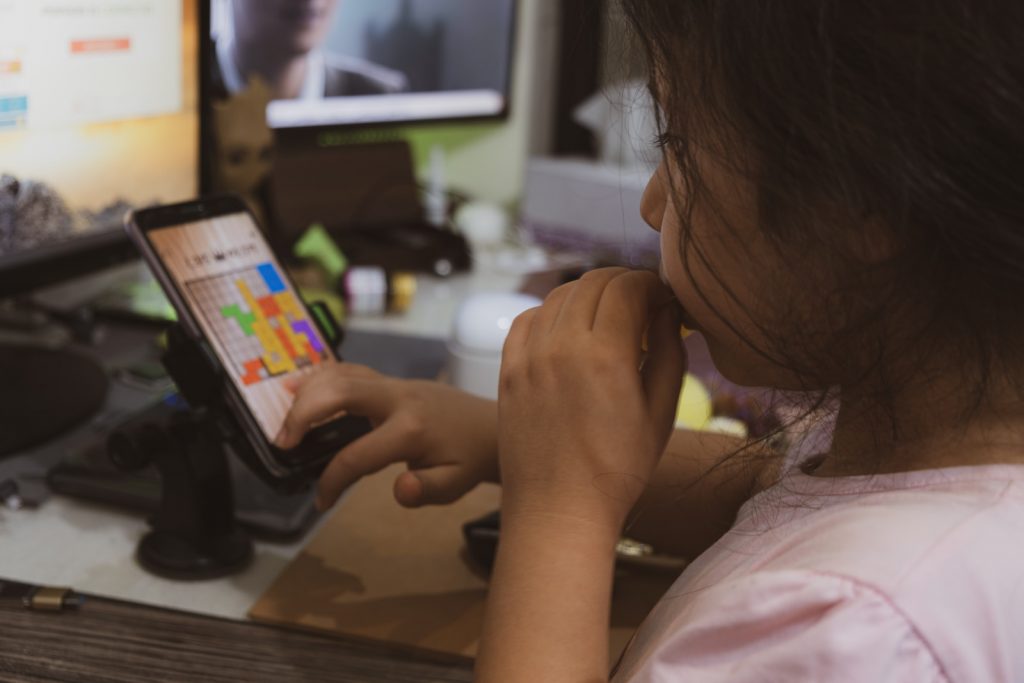
Screen Distance enhances visual comfort by ensuring users are not holding their devices too close, which can strain the eyes and cause symptoms such as redness, dryness, blurred vision, or headaches. If a user holds the device too close and the Screen Shield warning flashes up, they are advised to maintain at least 12 inches or 30 cm of distance from the screen.
Functioning of Screen Distance
Apple has taken a step towards promoting healthier screen time habits with the incorporation of Screen Distance in iOS 17. This functionality aims to alleviate eye strain, decrease the risk of myopia, and support overall eye health. It uses the device's integrated technology to detect how far the screen is from your face and encourages an optimal viewing distance.
Utilization of TrueDepth Camera for Distance Detection
The TrueDepth camera, a game-changer in facial recognition technology, takes center stage in enabling the Screen Distance feature. It recognizes when the device is held less than 12 inches from your face for an extended duration. The camera operates in tandem with the Screen Distance functionality, providing accurate measurements to ensure you are maintaining a healthy distance from your iOS device.
Encourages maintaining a Healthier Viewing Distance
When the Screen Distance detects that the device is held too close for a prolonged period, it encourages the user to move it farther away. This automated reminder serves as a tool for users of all ages to ingrain healthy viewing habits, reducing digital eye strain and the risk of myopia. This reminder is especially imperative for children under the age of 13, among whom the incidence of myopia is on the rise. However, if users want to switch off the Screen Distance function, they can do so in the iPhone or iPad settings.
How to Disable Screen Distance
The Screen Distance feature in iOS 17 encourages you to maintain a healthier distance from your screen. However, there might be instances or personal preferences where you'd want to disable this feature. Fortunately, the process is pretty straightforward.
Open Settings App
To begin with, you need to open the 'Settings' application on your device. This app houses all the system settings and customizations for your iPhone or iPad, including Screen Time preferences.
Select Screen Time
After launching the Settings application, look for the 'Screen Time' option. Upon finding it, tap on it to access various features and settings related to your device usage. Here, you will find the Screen Distance feature.
Choose Screen Distance
Inside the Screen Time section, scroll to locate the 'Screen Distance' menu under the 'Limit Usage' section. Tap on this menu to proceed with toggling off the Screen Distance feature. The Screen Distance feature provides significant benefits but is optional and can be turned off according to the user's preference.
Toggle Off the Switch
Once inside the Screen Distance menu, you'll find a toggle switch at the top. Tap on the switch to disable the Screen Distance feature. After doing this, Screen Distance will be disabled on your device, and you will no longer receive notifications about holding your phone too close to your face.
Re-enabling Screen Distance
Having the Screen Distance feature disabled can come with the freedom of use without constant reminders to maintain a specific distance from your screen. However, the benefits of Screen Distance cannot be overlooked, especially for the health of your eyes. Fortunately, reactivating this feature is as easy as disabling it.
Maintaining a Minimum 12-Inch Distance Between Eyes and iPhone
Upon re-enabling the Screen Distance feature, it is important to adapt to the recommended distance between your eyes and the device. This feature encourages maintaining at least a 12-inch distance to prevent the possibility of myopia and other eye-related issues due to prolonged exposure to the screen in close proximity.
Activating Screen Distance through the Settings
Re-enabling Screen Distance can easily be done through the Apple device settings. Open the 'Settings' app and go to 'Screen Time' like before. You will find the 'Screen Distance' option in this menu. Simply tap 'Screen Distance' and toggle on the switch to reactivate this innovative feature.
The Necessity of Re-enabling Screen Distance at the Earliest Convenience
Although some users might find the constant reminder to maintain a considerable distance from the screen a bit bothersome, it cannot be denied that the long-term benefits significantly outweigh the temporary discomfort. Therefore, if you've recently turned off the Screen Distance feature, it is highly recommended that you reactivate it at your earliest convenience. Regular usage will help ingrain healthier viewing habits, ultimately contributing to better eye health and overall well-being.