How to Restore the Original Twitter Icon Following Elon Musk's Unpopular Decisions
Introduction
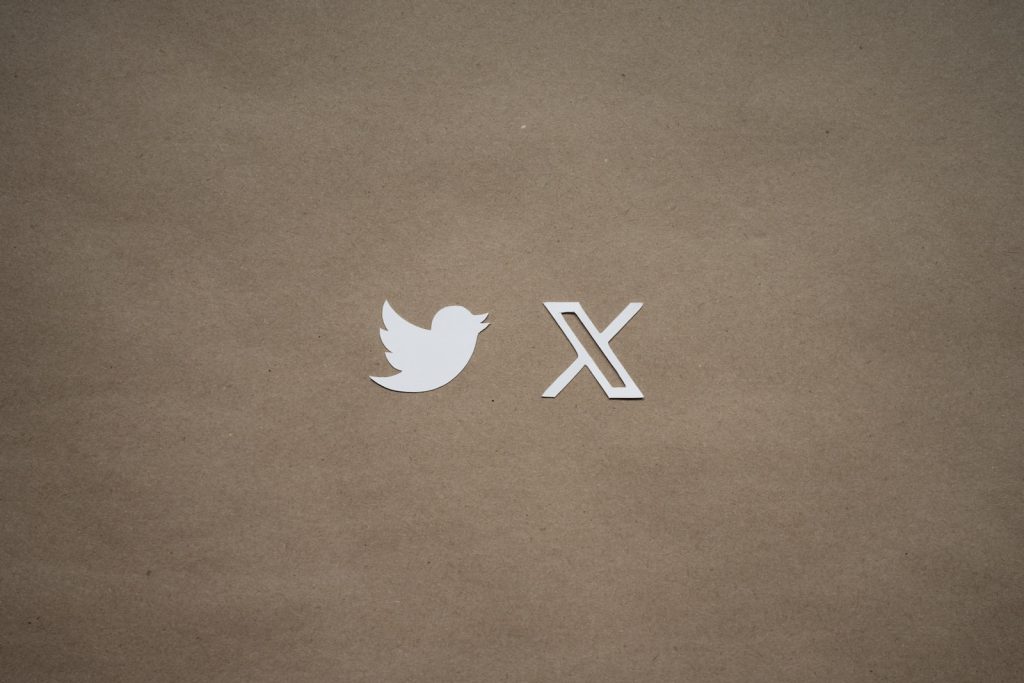
Elon Musk, the tech billionaire, has unrolled a series of changes following his purchase of Twitter in October 2022. Among the most controversial moves has been the replacement of the well-known blue bird logo of Twitter with the letter 'X.' Musk appears to be strongly affiliated with the letter 'X,' which features prominently in several of his other businesses, such as SpaceX and Tesla. The 'X' is often seen as a signifier of growth and innovation, elements Musk possibly wanted to bring to Twitter.
The Unpopular Rebranding of Twitter
Musk's rebranding efforts, however, have not been well-received by many users. The decision to replace Twitter's familiar bird icon with a stark 'X' has been met with widespread dissatisfaction, leading to demands for a way to revert the logo. The opposition seems so unanimous that it makes one question whether the rebranding is controversial.
Intrusive Installations
The dissatisfaction was not limited to virtual space alone. In a rather audacious move, Musk installed an enormous, blinking 'X' on the roof of the building across the street from the Twitter office in San Francisco, much to the annoyance of the inhabitants. This was quickly taken down in response to the vocal protests from the neighborhood residents.
Solution: Restoring the Twitter Icon with a Shortcut
All is not lost for those missing the old Twitter icon. Users can utilize Apple's Shortcuts app to restore the previous logo on their iPhone or iPad. By creating and deploying a specific sequence of steps, you can erase the 'X' from your Home Screen and replace it with the original Twitter Bird.
Step-by-Step Guide
The process involves a few key steps:
- Save the original Twitter bird icon to your photos.
- Download the 'Twitter' Shortcut and remove the 'X' icon from your Home Screen.
- Add the 'Twitter Shortcut' to your home screen, restoring the familiar logo and, perhaps, bringing back a bit of the nostalgia associated with the old Twitter.
Guide to Restoring the Original Twitter Icon
For those who want to replace the monotonous 'X' icon with the original Twitter bird icon, there is a straightforward guide that you can follow. We will take you through the main steps, which include saving the Twitter icon to your iPhone's Photos, downloading the Twitter Shortcut, removing the X icon from your home screen, and finally adding the Twitter icon to your home screen. This restoration process is a simple and quick solution to bring back the old Twitter aesthetics on your device.
Save the Twitter Icon to Your Photos
The first step in this process involves saving the original Twitter icon to your photos. You can achieve this by doing a long press on the Twitter icon image and then selecting the 'Save To Photos' option. This action will store the Twitter icon at the front of your Camera Roll, which aids in easy access during the ensuing steps.
Download the "Twitter" Shortcut
Next, you will need to download the Twitter Shortcut. To do this:
- Access the Shortcuts app on your iPhone. You can download it free from the App Store if you cannot find it preinstalled on your device.
- After opening the app, use the '+' button in the top right corner.
- Following this, tap on the 'Open App' option, enabling you to create a Shortcut that will open any app with a single tap.
- Click on the faded or greyed-out word 'App' at the top of the screen.
- Proceed to search for the 'X' app and open it.
Removal of X from Your Home Screen
The third step involves removing the unwanted 'X' from your home screen. To do this, tap on the small 'down' arrow positioned next to 'Open App.' Then select the 'Add to Home Screen' option. Here, you will need to input the name of the app, such as 'Choose Photo.' Head over to where your downloaded Twitter icon is stored in your photos, select it, and click the 'Add' button in the top-right corner.
Adding "Twitter" to Your Home Screen
Last, the 'X' app needs to be moved to a preferred folder. Afterward, replace it on your home screen with the newly created custom Shortcut. Carry out this action by dragging and dropping the Twitter Shortcut to your home screen. And voila! The old Twitter bird is now flapping on your home screen, replacing the dull 'X.'
Requirements and Shortcomings
While replacing the new 'X' icon on Twitter with the original bird icon is fairly direct and easy to execute, there are a few requirements to bear in mind and some minor shortcomings with this workaround.
Presence of a Small Banner on the Screen's Top
It should be noted that upon successfully adding the 'Twitter' shortcut to your home screen and using it, a small banner will appear at the top every time you tap the icon. Though minimal, this visual feature is a reminder of the inherent workaround used to get the original Twitter icon back on your home screen.
Continued Representation of the App as "X" in the App Switcher and App Library
Another point to consider is that even after successfully restoring the blue bird icon on the home screen, the application will continue to be represented as 'X' in other areas of your device interface, such as the App Switcher and App Library. Despite the aesthetical modifications applied to the home screen, the underlying identity of the application, as customized by Musk, prevails in other areas of your device.
The Iconic Blue Twitter Icon and Its Significance
Long-time users of the platform may treasure the original Twitter logo's visual aesthetic, as it harks back to Twitter's roots and its initial purpose. While the platform has evolved, the Twitter bird remains a nostalgic symbol for many. By restoring this theme on their devices, users can savor a blend of old and new, enjoying the modern features of the network while at the same time indulging in the familiarity of Twitter's classic emblem. Despite the changes that come with rebranding, the essence of Twitter, being a place for meaningful interaction and sharing, remains constant. And in sticking with the traditional logo, that essence is metaphorically conveyed – much like the bird, the app enables its users to spread their wings and freely express themselves in the digital sky.
Alternatives to Twitter
As some users may grow weary of the changes and drama associated with Twitter, it's important to remember that other platforms are available for engaging in social interactions online. Platforms like Meta's Threads and Mastodon provide diverse offerings and alternatives to the recent changes in Twitter.
Introduction to Meta's Threads
One such alternative is Meta's Threads, gaining momentum in social media. If you're familiar with Instagram, transitioning to Threads should be a breeze, as you can use the same following list. While it may not boast as many features as other platforms, it is characterized by a vibrating buzz of activity that might catch your interest.
About Mastodon
Mastodon is a worthy consideration if you're seeking a less corporate avenue. This free, open-source alternative offers a different environment for social interactions. Setting up an account is relatively easy; downloading the iOS app and signing up on the default service is all required.
Tips for Using Mastodon
As you transition to Mastodon, resources are available to enhance your experience as a Mastodon pro user. Don't hesitate to explore different tips and guides online to get the most out of your Mastodon experience.