Solving Unresponsive Finder Issues on Mac Devices
Quick Fixes for Unresponsive Finder
When you are facing issues with Finder not responding, before delving into more intricate troubleshooting methods, it's suggested to try some quick fixes. These fixes are simpler and might solve the problem without needing deeper troubleshooting.
Reboot Your MacBook or iMac
Rebooting your Mac device can help resolve minor technical issues that might have resulted from a recent software update. To do this, click the Apple menu and then 'Restart.' Your device will reboot. Press the power button to perform a hard reset if your device is unresponsive.
Option and Control-Click on Finder for Relaunch
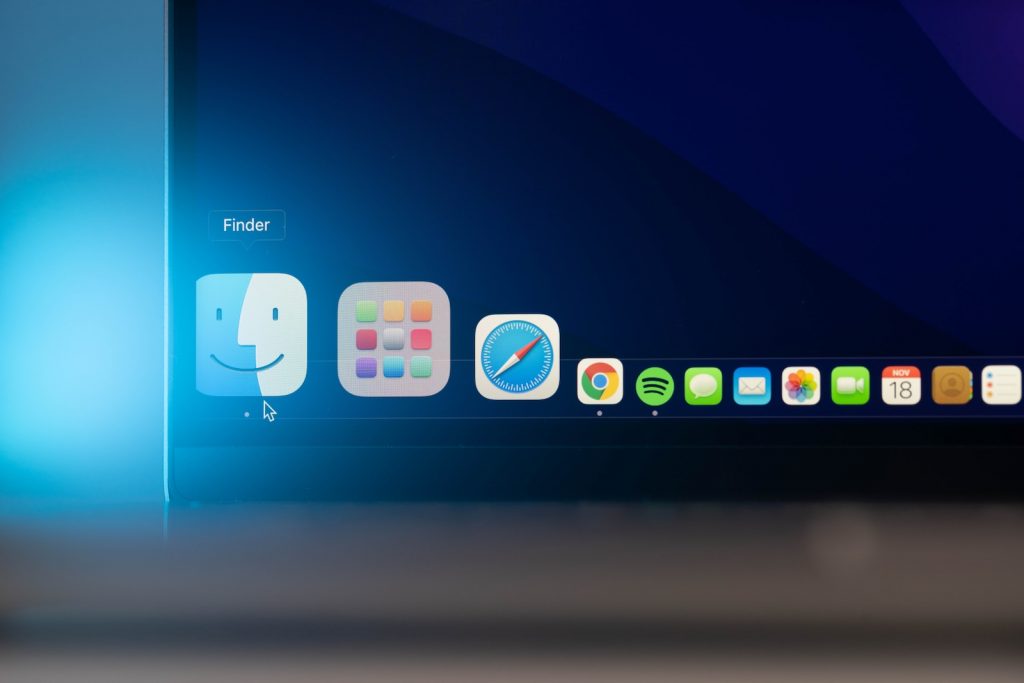
In situations where Finder seems unresponsive, you could try relaunching the Finder app. Press and hold the Option key, then control-click the Finder icon in the Dock to open a context menu. Here, you should see an option for 'Relaunch.' By selecting this option, you force Finder to restart. But do keep in mind that in cases where Finder is severely unresponsive, this menu might not show up properly, requiring you to execute a manual restart.
Log Out of Your iCloud Account
Unexpected software glitches can sometimes be resolved by logging out of your iCloud account and logging back in. For this, click the Apple menu, navigate to 'System Preferences,' click on your Apple ID, and then opt for 'Sign Out.' Signing out and signing back into your account might refresh and recalibrate the system software, making Finder responsive again.
Troubleshooting Methods for Persistent Issues
If your Finder issues persist even after the quick fixes, you may need to try more in-depth troubleshooting methods.
Force Restart Finder
To force restart Finder, click on the Apple menu and select 'Force Quit.' In the window that appears, choose Finder and click the 'Relaunch' button. Give it a few moments for Finder to close and reopen, thus completing the restart process.
Reset Finder Preferences Via Deletion of PLIST Files
Another method to restore your Finder's functionality is by resetting its preferences. This can be accomplished by deleting Finder's PLIST (Property List) files. Use the Command + Shift + G combination or click 'Go > Go to Folder' in your menu bar to do this. You will see a search bar - type in "~/Library/Preferences/" and press Return. Scroll until you find the "com.apple.finder.plist" file and delete it. The system will regenerate these preferences after a reboot.
Restart Finder Using Activity Monitor
You can also restart Finder through the Activity Monitor on your Mac. Open the Activity Monitor by clicking 'Launchpad > Activity Monitor,' commonly found in the 'Other' folder. Find 'Finder' in the list and double-click on it. Click the 'Quit' button in the pop-up window that appears, or highlight 'Finder' and click the stop button at the top (represented by an X icon). Wait for a moment while Finder restarts.
Possible Solutions Involving iCloud and Third-Party Applications
If your problem persists even after trying the above methods, it may be due to third-party apps or iCloud synchronization issues. Here are some solutions that might help:
Disable iCloud Synchronization
Some users have reported that disabling iCloud synchronization has helped them resolve issues with the unresponsive Finder. To disable iCloud synchronization, follow these steps:
- Click the Apple icon and open 'System Preferences > your Apple ID.'
- Wait for the 'iCloud Drive' pop-up window to load. If it doesn't appear, double-click' iCloud Drive.'
- Toggle the 'Sync this Mac' button to off.
- Reboot your device and attempt to use Finder again.
Ensure to perform all the troubleshooting steps once more if Finder is acting up after turning on iCloud to avoid recurring issues.
Turn Off Third-Party Apps in the Background
Compatibility issues between third-party apps and macOS Sonoma might also cause Finder to become unresponsive. A potential solution is to stop these third-party apps from running in the background. You can accomplish this through the Activity Monitor. Launch 'Activity Monitor,' and force quit all irrelevant applications. This could potentially resolve the issue and make Finder responsive again.
Final Recommendations: If Problem Persists
If, after taking all these troubleshooting steps, you're still facing the issue of an unresponsive Finder, there are a couple of final recommendations you might consider.
Allow Time for the Device to Catch Up and Reindex Files
The indexing process is an interesting fact to remember about macOS updates. After receiving an update, your system might take time to reindex your files, causing the Finder to lag or become unresponsive. Some users reported waiting several hours before Finder became responsive after updating from macOS Ventura to macOS Sonoma. It might not be a technical glitch, but the system takes time to properly organize and index your files. Therefore, it's recommended to wait at least one whole day before deciding the problem is not due to reindexing.
Contact Apple Support and Prepare for Possible Device Reset
If all else fails and Finder isn't responding, it's time to reach out to Apple Support. They can provide more specific help to resolve the issue. However, remember to back up your important files using Time Machine before making that call. This is because one possible solution that Apple Support might recommend is a complete reset and clearing of your device. A backup will ensure you do not lose any vital information during this process.