How to Stop Siri from Randomly Activating: Understanding the Issues & Solutions
Understanding the Issues with Siri
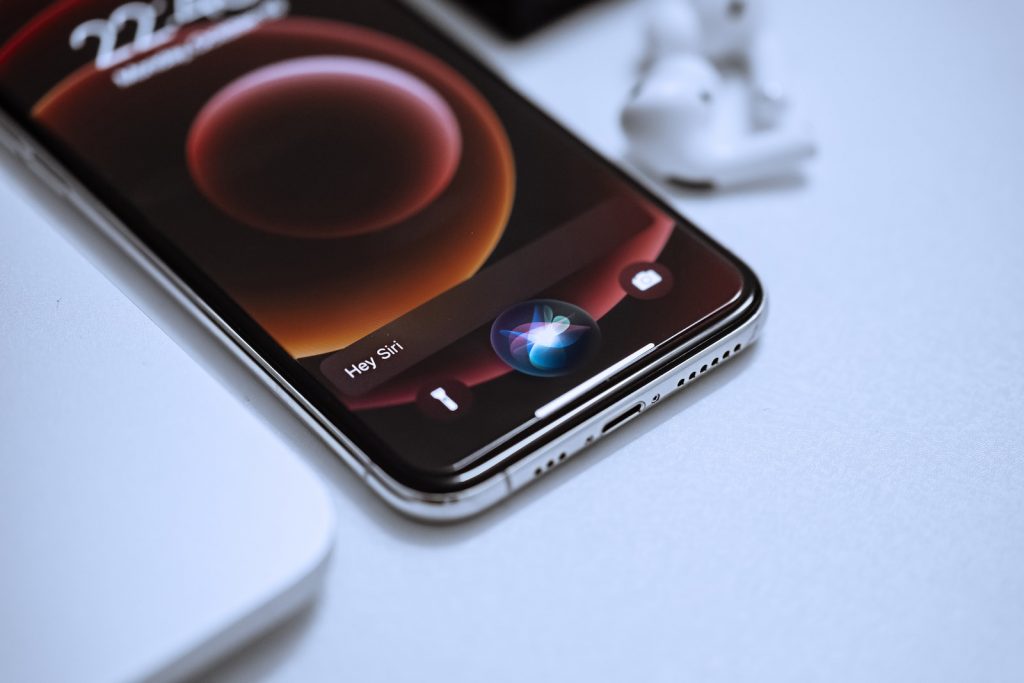
Apple's Siri is a helpful and interactive voice assistant on multiple devices like the iPhone, iPad, and Mac. However, like any digital assistant, it can sometimes malfunction. One of the most pervasive issues users experience is Siri activating randomly, responding with phrases like "Sorry, I didn't get that," even without any prompts from the user. This problem is common and can happen regardless of whether the user interacts with the device or when it is idle on a table.
Causes of Siri randomly activating
Several reasons can lead to Siri's random activation. For some users, it happens during a call, while listening to music, or merely moving around. Sometimes, being in a noisy environment can trigger Siri as the device might misconstrue other sounds as prompts. Similarly, a technical issue within the device's recognition software can result in Siri's mishaps. The problem may also arise due to bugs from recent software updates, which can cause Siri to behave unexpectedly.
Why Siri's random activation is problematic
The random activation of Siri can be more than just a slight inconvenience. In some cases, it can disrupt the user's focus, especially in the middle of an important task or while using an application. Furthermore, this issue can also cause significant embarrassment if Siri responds loudly in a quiet or public environment. Lastly, the random activation of Siri can also rapidly drain the battery life of devices, leading to reduced device performance over time.
Steps to Address Siri's Random Activation
If the common solutions to deactivate Siri's random activation are ineffective, it becomes necessary to contact Apple Support. They have technicians who can guide users through comprehensive troubleshooting steps remotely. As an alternative, users can visit an Apple Store and seek help from employees at the Genius Bar, who are trained to resolve such technical complications. At the same time, this may seem like a last resort, but ensuring device functionality and user satisfaction is important.
How to Stop Siri from Randomly Activating
You can take a few measures to stop Siri's random activation from happening. These range from modifying critical settings on your iPhone, iPad, and Mac to contacting Apple Support for technical assistance.
Choosing silent responses on iPhone and iPad
Choosing silent responses is one way to reduce the intrusiveness of Siri's random activations. In the device's settings, you can opt for Siri to only provide voice responses when using the "Hey Siri" command or connected to Bluetooth, headphones, or CarPlay. This way, even if Siri does activate unexpectedly, the disturbance is minimized.
Changing Siri's voice feedback settings on Mac
Changing the voice feedback settings for Siri on your Mac is another method that can help curb Siri's sudden outbursts. By opting for the voice feedback option "When Silent Mode is off" or "Only with 'Hey Siri,'" Siri's verbal responses become more controlled, reducing the likelihood of her suddenly speaking up.
Disabling the "Hey Siri" feature on iPhone, iPad, and Mac
One of the major triggers for Siri's random activations is the "Hey Siri" voice command. With this feature enabled, your device's microphone always listens to the "Hey Siri" command. However, it can sometimes misinterpret other sentences or sounds as this command, leading to unintended activations of Siri. Disabling the "Hey Siri" feature can significantly reduce the chances of Siri randomly activating.
Disabling activation of Siri through the Home/Side Button
If you find that Siri tends to activate when you press the Home or Side button, it suggests that you may unknowingly trigger Siri. One solution would be to disable the setting that activates Siri via these buttons. This could help prevent Siri from coming on unexpectedly.
Disabling the activation of Siri when the device is locked
Siri can also randomly activate when your device is locked. If this happens frequently, you can disable Siri's access when your device is locked. This could ensure that Siri does not interrupt when your device is idle or if you unintentionally prompt her with the lock screen on.
Specific Situations and Their Fixes
While managing Siri's random activation can pose a challenge, understanding specific scenarios where it happens, and their suitable fixes can be a significant step towards resolution. The steps can range from altering device settings to dealing with activations while typing on a Mac and taking drastic measures like disabling and rebooting if none of the methods work.
Dealing with random Siri activations on Mac during typing
If your Mac is causing random Siri activations while you're typing, it could be due to an accidental key press that launches Siri. Analyzing your keyboard habits could help locate the issue. Check if the Siri key on the top right of the keyboard is too close to your common typing area or if you're inadvertently hitting it during rapid keystrokes. Once identified, training yourself to avoid that specific key or remapping it to another function could help solve this problem.
Disabling and Rebooting your device if none of the methods work
If other methods fail to stop Siri from randomly activating, one viable solution would be to switch off Siri, restart your device, and re-enable Siri. This is a form of soft reset and can fix transient software bugs that might be triggering Siri. To disable Siri, go to your device's Siri & Search settings and turn off "Listen for 'Hey Siri,'" "Press Home for Siri," or "Press Side Button for Siri." After this, turn off your device and wait a few minutes before restarting it. Then, go back to Siri & Search settings and switch on the features you had previously turned off.
Final Resolutions
If the issue of Siri randomly activating remains unresolved after all these steps, it's time to consider final resolutions. Here are the last-resort options you have at your disposal: get in touch with Apple Support directly or visit an official Apple Store for hands-on assistance.