Troubleshooting a Flashing Orange Light on the MacBook Charger
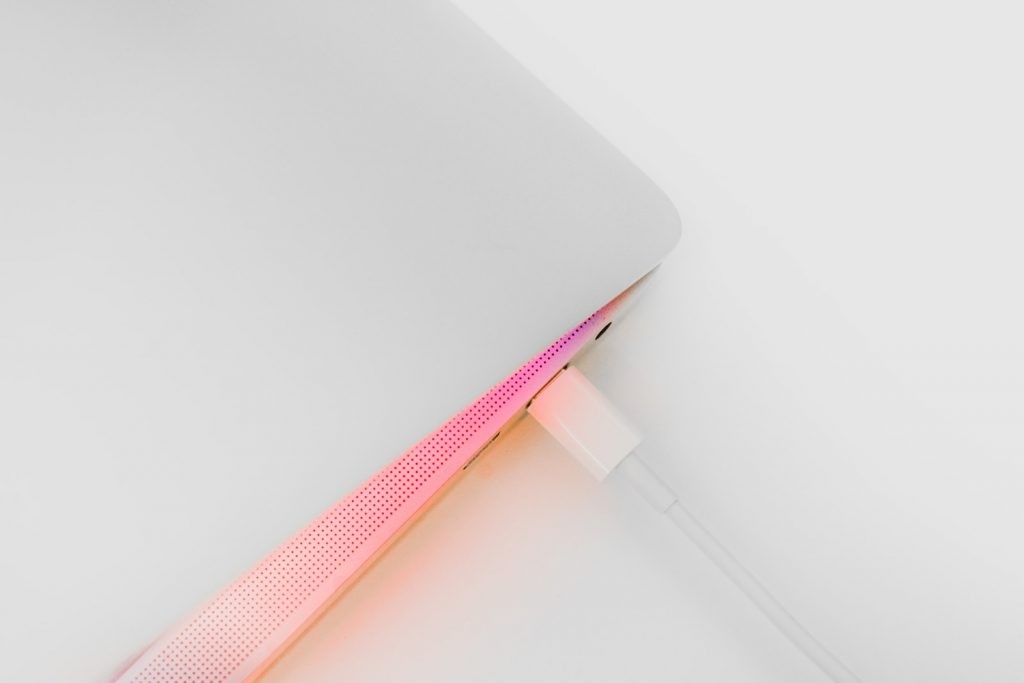
Causes of a Flashing Orange Light on the MacBook Charger
When your MacBook charger displays a flashing orange light, it indicates that there is an issue preventing it from charging your laptop properly. While there could be a variety of reasons for this issue, some common causes are:
Damaged MagSafe Charger
The MagSafe Charger is an integral part of the MacBook's power system. A flashing orange light may signal that your MagSafe Charger is damaged. It could be due to frayed cables, bent or burnt prongs, or internal damage to the charger itself. A faulty charger cannot deliver the adequate power necessary for charging your MacBook. Therefore, it's advised to inspect the charger for visible signs of damage. If damage is found, the charger should be replaced to ensure proper power supply to the MacBook.
Dirt in MacBook's Charging Port
Another common cause of the orange light emission could be dirt or debris present in your MacBook's charging port. Over time and due to regular usage, dirt, dust, and small particles can get lodged into the charging port, thus obstructing efficient power supply. It can result in the orange light flashing on your power adapter. To rectify this, gently clean the charging port to remove any dirt or obstruction that may hamper your charger's performance.
Software Glitches or Firmware Issues
Occasionally, software bugs or firmware issues can lead to faulty behavior of your MacBook's charging system, thereby causing the charger to blink orange. The computer's software regulates your MacBook's power management system. Issues with these power management protocols can disrupt the process of charging. Therefore, keeping your MacBook's software updated is essential. In case the problem persists even after updating, resetting the System Management Controller might solve it.
Step-by-Step Guide to Diagnose and Fix the Problem
If your MacBook is displaying a flashing orange light and hindering the charging process, several steps can be taken to identify the issue and resolve it. Below is a detailed guide on methods to diagnose and fix the problem:
Checking the Power Adapter
Often, the issue can be with the power adapter. This could be a result of internal damage or physical damage, such as burnt or bent prongs and frayed wires. The first step is to thoroughly inspect the adapter for any visible damage. If no damage is visible, try using a different power adapter to see if the issue persists. If the charging functions fine with another adapter, then the original adapter is probably faulty and needs replacement.
Checking and Cleaning the USB-C Cable
The USB-C cable could also affect the charging process if it's damaged or dirty. Perform a visual check for any physical deterioration, such as cuts or exposed wiring on the USB-C cable. If everything seems alright, clean both ends of the USB-C cable using a soft, lint-free cloth. This will remove any dust or debris that might be causing the problem.
Cleaning the Charging Port on the MacBook and the USB-C port on the Adapter
Over time, small particles such as fragments of dust or metal can accumulate inside the charging port of the MacBook or the USB-C port on the Adapter. These particles can interfere with the connection, resulting in ineffective charging. To clean the charging port, you can use a toothpick or a pair of tweezers. Make sure the charger is unplugged from the power source when doing this. If you notice burn marks or extreme dirt on the charging port, consider getting the port replaced to avoid more serious damage.
Updating MacBook's Software
Software bugs can sometimes lead to issues with the charging system of your MacBook. Ensure your MacBook's software is fully updated to the latest version, as updates often include fixes for known issues. If your MacBook has pending software updates, install them and then try charging your MacBook again.
Resetting the MacBook's SMC Chip
The System Management Controller (SMC) chip controls power-related functions on your MacBook. If everything else appears fine, the problem could be with the SMC chip. In this case, resetting the SMC might solve the problem. Note that the steps to reset the SMC differ based on the specific model of your MacBook, so refer to Apple's official guidance for instructions.
Seeking Professional Help
If your MacBook still doesn't charge or shows a flashing orange light on the charger even after trying the steps mentioned above, it may be time to seek professional assistance. Thus, consider contacting Apple support or visiting an Apple-authorized service center.
Preventive Measures to Avoid Future Issues
While encountering issues like a MacBook not charging can be frustrating, there are preventive steps that you can take to avoid facing such problems in the future. Regular maintenance and careful use of your MacBook can help in mitigating potential issues.
Keeping MacBook Clean
One simple yet effective measure is to keep your MacBook clean. This includes cleaning the charging port and USB-C cable regularly to prevent a build-up of dust or debris, which can lead to poor connection between the charger and the ports, affecting the power supply. It's advised to gently clean the ports and cables using a soft cloth or brushes, ensuring all power sources are turned off.
Regularly Shutting Down the MacBook
Another effective measure is to regularly shut down your MacBook instead of always putting it on sleep mode. The process of turning off the computer allows its system to reset, clearing temporary files or software glitches that may cause problems in the long term. In addition, shutting down the MacBook and disconnecting the power adapter once the battery is fully charged can avoid unnecessary strain on the battery, thereby prolonging its life.
Additionally, resetting the System Management Controller (SMC) can also be a preventive measure. The SMC manages power-related settings, and sometimes, its reset could resolve potential power-related issues, such as the battery not charging or the inability of the MacBook to properly go to sleep or wake up. While it does require setting up the customized power settings again, it can save you from facing more serious issues in the future.