Troubleshooting Notification Issues After iOS 17 Update
Introduction to the Issue
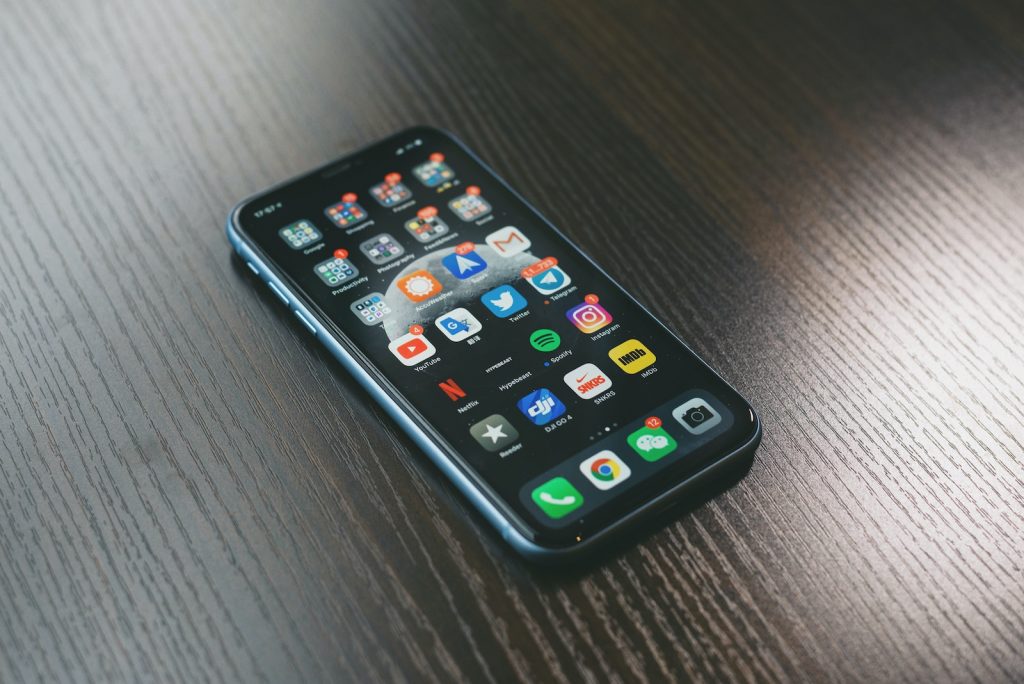
Upgrading to the latest operating system on our devices is usually a smooth experience, but each new update introduces different kinds of issues. After updating their iPhones to iOS 17, several users have encountered a significant problem - they have stopped receiving notifications. More specifically, these complaints primarily revolve around notifications from installed apps that utterly cease functioning, indicating a possibility that the issue may lie within the Notification Settings. This issue is frustrating, especially for those who rely on timely notifications for their day-to-day tasks.
It's all About the Settings
The most likely explanation for this issue could be related to the Notification Settings on the iPhone. For some apps, the 'Allow Notifications' feature may have been turned off after the upgrade. This indicates that users will need to confirm if the 'Allow Notifications' option in the settings is toggled on for each application they want to receive alerts from.
Troubleshooting the Notification Problem
If the issue persists even after making sure the 'Allow Notifications' setting is enabled, there are additional troubleshooting steps to help resolve this issue. Remember, the key is to go step by step, checking at each stage if the problem has been fixed. These remedial measures can help restore the notification feature to normal, thereby ensuring that users don't miss out on any important updates from their apps.
Possible Reasons for Notification Issues
Upon updating to iOS 17, users have reported stopping receiving app notifications. Several factors could be contributing to this issue, such as notification settings, notification summary enabled, pending app updates, or bugs with iOS 17 itself. Understanding these possible reasons is the first step towards solving the issue.
Notification Summary Enabled
Another potential cause of you not receiving push notifications is if the 'Notification Summary' feature is enabled. Introduced in iOS 15, this feature consolidates all non-urgent notifications before delivering them to your device at a specified time. If enabled, you may not receive immediate push notifications from individual apps.
Pending App Updates
A third plausible reason for not receiving notifications could be uncompleted app updates. If you notice any pending updates for your installed apps, this could interfere with your notification functionality, and updating those apps might resolve the problem.
Bugs with iOS 17
Lastly, it's also feasible that bugs within the iOS 17 operating system may be causing the notification issue. In the past, several bugs have been identified and patched with updates. If this is the problem, the best course of action would be to wait for fixes and patches from Apple.
How the iPhone's Focus Feature Might be Causing Issues
Interestingly, one of the features on the iPhone could also be contributing to the issue. The 'Focus' feature, when turned on, might interfere with the delivery of notifications on your device. Simply navigating to Settings > Focus and confirming no focus modes are activated, could resolve the issue and restore your push notification functionality.
Troubleshooting Steps
As with any technical issue, several troubleshooting steps can isolate and fix the issue of not receiving notifications on iOS 17. Here are the steps to follow:
Check and Allow Notification Settings
The first step in solving the notification issue is to check the notification settings for your device and the specific apps you're not receiving notifications from. The 'Allow Notifications' option should be toggled on for all the apps you want to receive notifications.
Disabling Focus Mode
If you're using the 'Focus' feature on your iPhone, this could be the reason for the problem. If this feature is enabled, iOS 17 will stop sending notifications. Disabling this feature might restore your notification functionality.
Disabling Notifications Summary
If the 'Notification Summary' is enabled on your iPhone, this could be bundling your notifications and sending them at a specific time instead of immediate delivery. You can disable this feature if you want to receive alerts from your apps instantly.
Turning off Low Power Mode
If your iPhone is in low power mode, the system could prevent some apps from sending notifications to save power. If low power mode is on, try turning it off and see if that fixes the issue.
Checking Wi-Fi or Cellular Connection
Notifications from some apps require an internet connection to work. Check if your Wi-Fi or cellular data connection is active. Some notifications may not come through if your connection is weak or unstable.
Updating Installed Apps
If there are any pending updates for your installed apps, this could interfere with your notification functionality. Updating those apps might resolve the problem.
Performing a Force Restart of iPhone
One commonly suggested troubleshooting step is to force restart your device. This can often solve numerous issues, including system-related bugs that might be causing notification errors.
Resetting the iPhone
Last but not least, resetting the iPhone could also help. You could start with resetting all settings or only network settings. Resetting will revert all customized settings to factory defaults but won't affect your data. Also, this action will require your device's passcode to proceed.
Conclusion and Recommendations
While facing issues like not receiving notifications on your iPhone after updating to iOS 17 can be frustrating, it's important to try the various troubleshooting methods suggested. These steps, such as checking notification settings, turning off features like 'Focus,' and even force restarting your device, have been tried and tested and have proven effective in resolving similar issues in the past.
Importance of Trying Suggested Fixes
From a user's perspective, it's crucial to try these methods before resorting to more drastic measures such as factory reset or contacting support. These steps do not require extensive technical knowledge and can be conducted by any user, making them the first defense against such issues.
Sharing Other Possible Solutions
Every technical problem can have multiple solutions. Therefore, users discovering other methods of resolving this issue are encouraged to share their findings. By sharing your solution in the comments below, you are not only assisting yourself but are also helping the entire iPhone community deal effectively with similar issues. Input from users often proves valuable, serving as a useful point of reference for individuals experiencing similar problems.