Troubleshooting Tips for AirPods: Check Battery, Connectivity Issues, Automatic Ear Detection, Gesture Settings and Contacting Apple Support
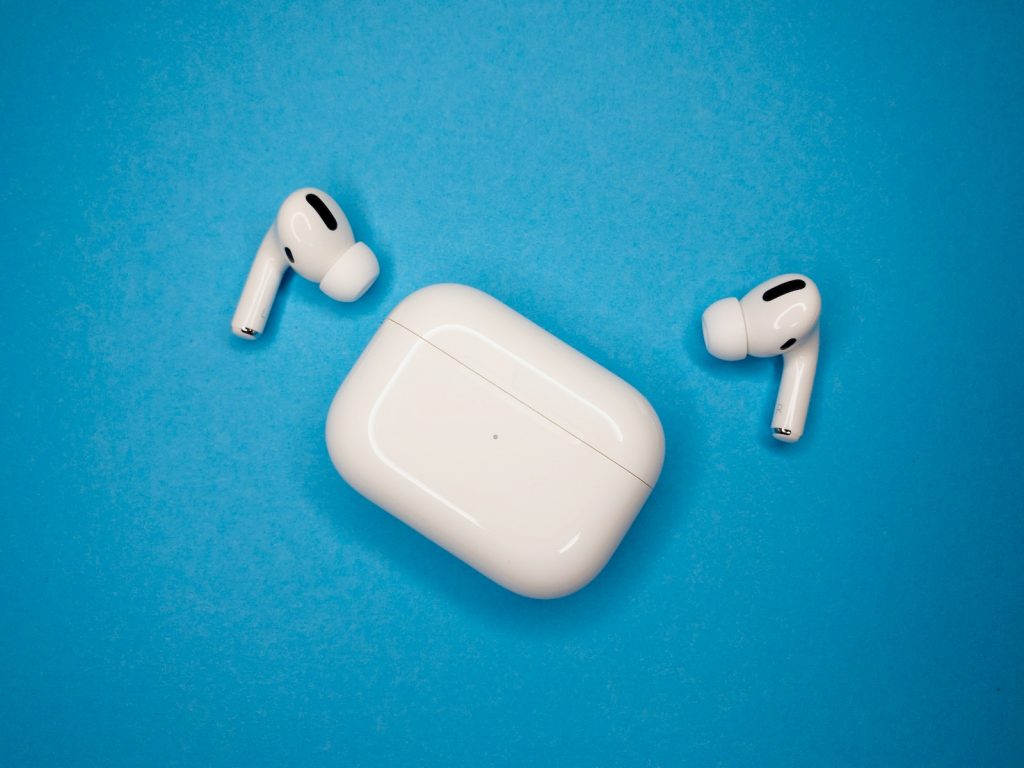
Check AirPods Battery
If your AirPods are randomly pausing while in use, examining the remaining battery charge is important. When the charge is insufficient, the AirPods will automatically pause to conserve energy. A warning chime will be triggered to alert you of this. Therefore, it's good practice to regularly check the battery level and keep your AirPods charged to avoid interruptions in your listening experience.
Charge Your AirPods to Prevent Pausing
Keeping your AirPods adequately charged is an effective preventive measure against pausing. If your AirPods are frequently used to listen to media or attend calls, their battery percentage could dwindle faster than expected. Hence, we recommend charging your AirPods often to ensure they deliver an uninterrupted service.
Selection of the AirPod With the Higher Charge as the Microphone
If you often make or receive calls, one AirPod's battery tends to drain faster than the other. It occurs because one AirPod is commonly set to handle both the speaker and the microphone functions while the other only operates as a speaker. Naturally, the AirPod with the dual-functioning role will experience more strain and drain its battery more rapidly. If you frequently experience one AirPod disconnecting or pausing repeatedly, it may be beneficial to adjust your settings. You can allocate the microphone role to the AirPod with a higher battery percentage to balance the workload.
To do so, navigate to Settings > Bluetooth > "Your AirPod's Name"> Microphone > then choose either Always Right AirPod or Always Left AirPod. It's important to rotate the microphone function periodically between both AirPods to maximize their optimal battery life and prevent premature battery drainage issues.
Connectivity Issues
Connectivity issues could also contribute to your AirPods pausing randomly. AirPods are known for their convenience and portability, but they have a limited connectivity range and can be affected by obstacles like walls or other electronic devices. Interference could cause your AirPods to drop out and pause. Having your AirPods paired with multiple devices simultaneously may contribute to the random pausing problem.
AirPods' Limited Connectivity Range
AirPods have an impressive range, but it is not infinite and is susceptible to barriers. The connection may get weak if there are walls or other devices between your AirPods and the source device. It can lead to your AirPods pausing intermittently during usage. To fix this, you must ensure you stay within an optimal range of your source device, such as your iPhone or Mac. Moving closer to the source device can help maintain a stable connection.
The Effect of Having Paired Your AirPods with Many Devices
If your AirPods are paired with multiple devices simultaneously, such as your iPhone, iPad, and Mac, you might experience disruptions while playing music or during calls. The instance of having your AirPods suddenly pause may also increase. This is because your AirPods might be trying to connect to multiple source devices simultaneously.
Steps to Unpair AirPods from iPhone and Mac
To solve this issue, choose a single device you wish to use at a time and disconnect your AirPods from other paired devices. For instance, if you are listening to music on your iPhone, it may be advantageous to unpair your AirPods from your Mac. Hanging onto multiple connections may cause disruptions when one device tries to take over the connection.
The Function of Automatic Ear Detection
When functioning correctly, the Automatic Ear Detection option is a smart feature that saves battery and provides user convenience. With a pair of sensors built into the AirPods, the earbuds can detect when they are in or out of your ears to automatically play or pause media. The content will pause when you remove either of the earbuds, providing a seamless listening experience. However, due to potential issues with the sensors, this feature could be the cause behind your AirPods pausing randomly.
Disabling the Automatic Ear Detection feature
If you suspect that the Automatic Ear Detection feature is causing your AirPods to pause continually, the best solution could be to disable this feature. The steps to do this are quite straightforward. On your iPhone, open the 'Settings' app and tap the 'Bluetooth' option. Locate your AirPods on the list, then tap the 'i'' icon. You can switch off the 'Automatic Ear Detection' toggle from this display. Disabling this feature may impact the battery life of your AirPods, as they will continue to play content even when not in use.
Gesture Settings
Random pausing of your AirPods could be due to accidental activation of the double-tap gesture controls, especially if you've set your AirPods to play or pause media playback with a double-tap. You might want to consider changing the double-tap action to a different function to mitigate this issue.
Problem with Setting AirPods to Play/Pause Media Playback with Double-tap Gestures
AirPods offer gesture controls, allowing you to control music playback, answer calls, and activate Siri with a double-tap on the AirPods' stem. If the double-tap action is set to the Play/Pause function, you might inadvertently be causing the random pauses with an accidental tap. Changing the function linked to the double tap action can help prevent the AirPods from pausing randomly.
Steps to Change the Double-tap Gesture
To alter your AirPods' double-tap settings, you will need to access the Bluetooth settings on your paired device. On your iPhone, open the 'Settings' application and tap 'Bluetooth'. Look for your AirPods in this menu and click the 'i' icon next to them. From here, choose the 'Left' or 'Right' option under the 'Double-Tap AirPod' menu, and select any other listed action besides 'Play/Pause'. Repeat these steps for the left and right AirPods to ensure accidental double-taps don't pause your content unexpectedly.