Unlocking the Power of StandBy Mode in iOS 17: Customizing, Disabling, and Force Restarting for Optimal Use
Introduction to StandBy Mode in iOS 17
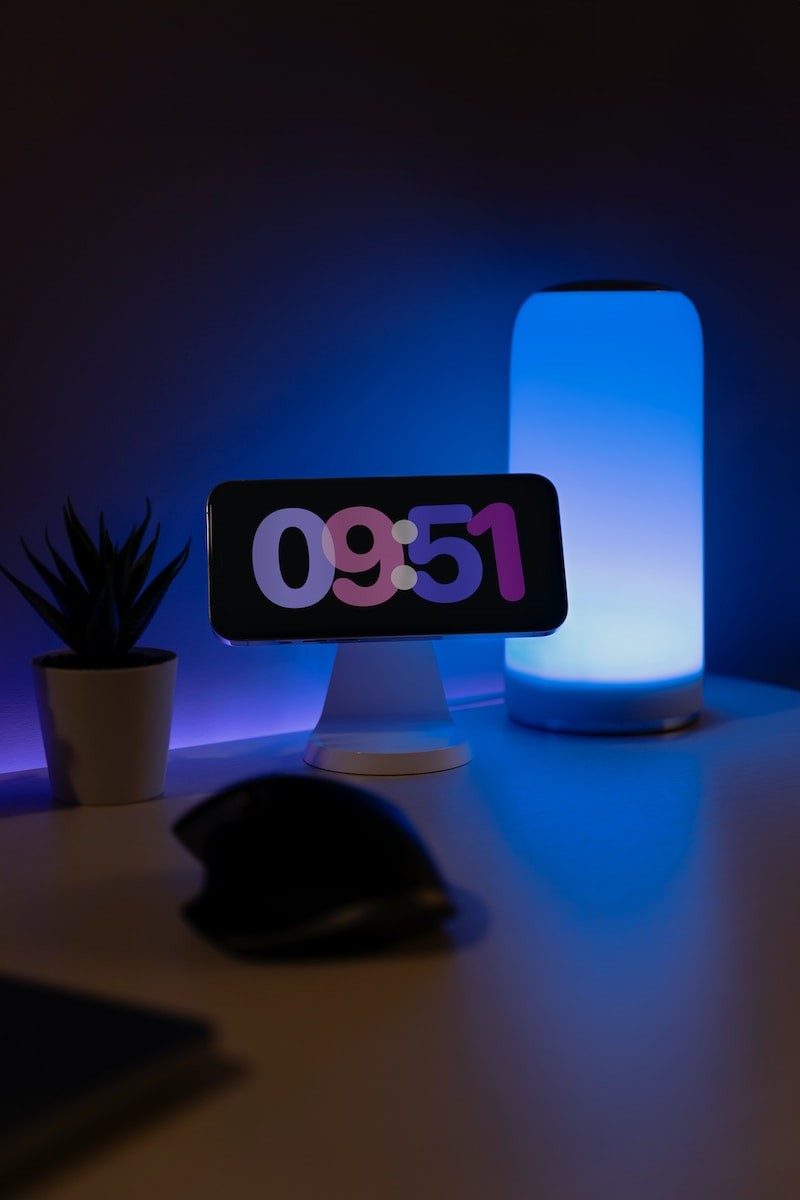
The StandBy Mode is an interesting addition to the iOS 17 release despite not being one of the 'tentpole' features that have characterized previous updates. The feature enhances your iPhone's capabilities, transforming it into a smart display whenever it is on a charging stand. It brings a whole new experience to the lock screen, allowing swift access to a plethora of information. This includes photos, the time, weather updates, and other pertinent data from customizable widgets.
StandBy Mode's features and usage
StandBy Mode provides a significantly different user experience than traditional iPhone navigation interaction. It exhibits incoming notifications, Siri responses, and music playback controls in an easily readable full-screen view. These modifications create not just a more interactive phone usage but also an aesthetically pleasing display, making your iPhone a miniaturized smart screen.
Customization of your StandBy picture display and clock screens offers another engaging aspect of this feature. At night, the screen can dim to a soothing red tone, an excellent feature for a bedside gadget. Besides its aesthetic value, StandBy Mode introduces a convenient way of viewing important details at a glance, even from a distance.
How StandBy Mode works with different iPhone models
StandBy Mode takes full advantage of the always-on display available on iPhone Pro models, especially the iPhone 14 Pro and iPhone 15 Pro. Even without much technical tweaking, the mode works seamlessly right out of the box with any iPhone model that supports the iOS 17 operating system. Nevertheless, to maximize the platform's functionality, understanding key aspects of its settings can prove beneficial.
Disabling StandBy Mode via Settings App
While StandBy Mode can offer a novel experience with its display features, there may be situations when users may want to disable this function. The process to turn off StandBy mode is quite straightforward.
Steps to turn off StandBy Mode through iPhone settings
To disable StandBy Mode, open the Settings app on your iPhone. Locate 'StandBy' and tap on it. At the top of the StandBy section, you'll find a toggle. Simply tap on it to turn off StandBy Mode. With this, StandBy should now be deactivated on your device.
Possible issues in disabling StandBy Mode
At times, users may encounter challenges when trying to disable StandBy Mode. For instance, technical glitches or bugs might prevent StandBy from being effectively deactivated. Luckily, there are some troubleshooting steps one can take to resolve these issues.
Solution 1: Disable and Re-enable StandBy
If StandBy Mode isn't working correctly, a quick fix is disabling and re-enabling the feature. This cycle can resolve cache errors or software bugs affecting StandBy Mode. To do so, open the Settings app and tap 'StandBy.' If the Night Mode is enabled, tap to disable it. Next, tap to disable the toggle for 'StandBy' at the top of the screen. If Motion To Wake is enabled, turn it off as well. Once all settings are disabled, go back by tapping on '< StandBy' at the top left corner of the screen and disable the StandBy toggle as well.
Solution 2: Unclick & Re-click All Settings in StandBy
If you are still experiencing issues with StandBy Mode, another approach is to unclick and re-click all settings under StandBy in the Settings app. Begin by disabling all StandBy settings and then re-enable them one by one. This action can help resolve bugs or iOS errors that may create challenges with your iPhone's StandBy mode.
Force Restart to Turn Off StandBy Mode
Another method to rectify issues with the StandBy Mode on your iPhone is by performing a force restart. Force restarting could be beneficial when the issues persist even after trying other troubleshooting methods, providing a fresh start for the operating system.
When to use the force restart
Force restart can be a practical solution for diverse iOS-related issues. As it ends all the background services on the device temporarily, it eliminates operational errors and bugs that could be affecting the StandBy Mode. This is particularly helpful when the StandBy Mode isn't working as expected or when there are problems in toggling the mode on or off.
Steps to force restart your iPhone
Start the procedure by disabling the StandBy mode in the settings app. Press the volume up button quickly, then release it and do the same with the volume down button. Hold down the power button until the Apple logo appears on the screen. At this point, release the power button to let the device restart. Once the iPhone restarts, go back to settings and re-enable StandBy Mode.
Another way to force restart involves pressing and releasing the volume up button, repeating the action with the volume down button, and then pressing and holding the Sleep/Wake button until the Apple logo is visible. After the device restarts, you can go to the settings app, tap "StandBy" and enable the toggle for StandBy at the top. You can then test StandBy Mode by plugging in your iPhone, positioning it in landscape orientation, and leaving it idle for a while.
Customization Options for StandBy Mode
The StandBy Mode in iOS 17 brings a range of user customization options. Users can personalize their screens according to individual requirements and preferences. The StandBy display is made up of three screens, which are navigated through by horizontal swiping. These include an interactive widgets screen, a photo library screen, and a large clock screen.
Creation of Widget Stack for StandBy Mode
The first screen of StandBy Mode holds a selection of interactive widgets. Initially, it displays an analog clock and a monthly calendar with the current date. However, users can customize this page by selecting other widgets of interest. Simply swipe up and down to change the widgets on display. This flexible setup allows for a more distinct and personalized StandBy screen.
Adding and displaying photos in StandBy Mode
The second StandBy screen is a gallery, showcasing pictures from your Photos library. It operates as a rotating slideshow of images stored on your iPhone. This feature enables your cherished moments to be displayed constantly, giving your StandBy screen a more personal touch. In addition to the image, the screen also shows the location where the photo was captured and the date it was taken.
Customizing StandBy Clock Face on iPhone
The third screen of the StandBy Mode displays a large clock. Users can customize the design of the clock to suit their preferences. By offering a wide variety of clock face styles, this StandBy screen can be as simple or elaborate as desired, catering to your visual style.
Switching between these three StandBy Modes – Widgets, Photos, and Clock, is as simple as swiping left or right on your iPhone screen, making StandBy a truly flexible and customizable feature on iOS 17.
Technical Details
Visual & GUI Characteristics