PC Clean Pro
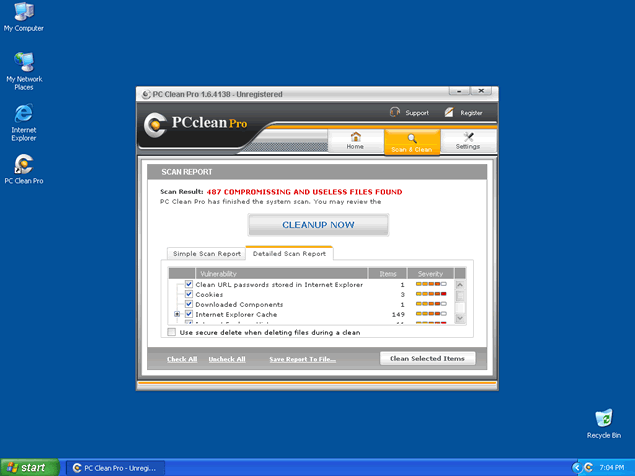
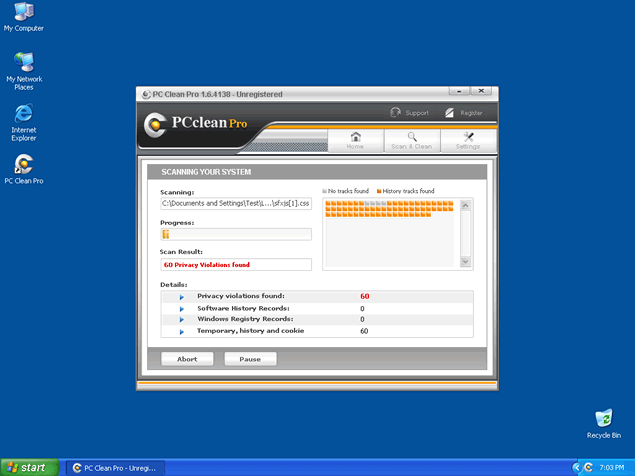
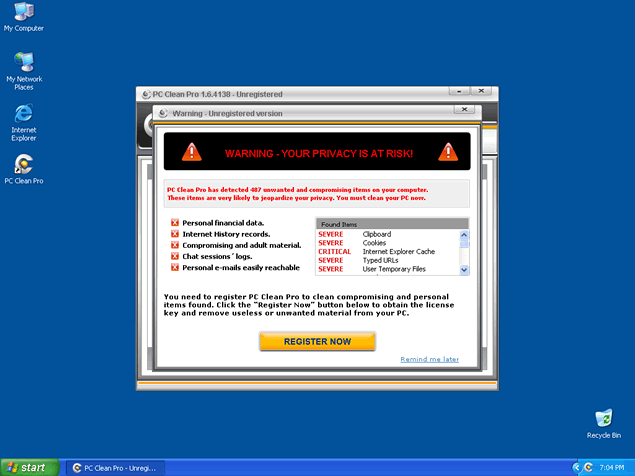 PC Clean Pro is a fake file-cleaning utility that pretends to scan your computer for compromising types of private material (such as web browser history) and then delete it once you purchase PC Clean Pro's full version. Even though PC Clean Pro is of minimal concern by itself, SpywareRemove.com malware experts have found that most PC Clean Pro infections are caused by other computer threats, I.e. Trojan droppers, that may also be present. Cautionary alerts from PC Clean Pro will usually take the form of warnings about your privacy, but PC Clean Pro isn't able to delete incriminating or unwanted files and only serves malicious purposes by being on your computer. Therefore, there's little reason to avoid deleting PC Clean Pro with your anti-malware scanner of choice as soon as you notice its existence, as displayed by its prominent pop-ups.
The Dirty Truth About PC Clean Pro's Features
PC Clean Pro exhibits a behavior that's essentially-identical to other types of confirmed scamware file cleaners. Error messages from PC Clean Pro may imply that PC Clean Pro is able to find and delete tracking cookies, your web-browsing history and other types of invasive tracking information, but PC Clean Pro, even as its 'full' version, is unable to detect or delete any kind of PC threat. PC Clean Pro, therefore, confines its behavior making fake pop-ups like the sample below, when PC Clean Pro is not panhandling for your money:
"PC Clean Pro has detected 487 unwanted and compromising items on your computer. These items are very likely to jeopardize your privacy. You must clean your PC now."
SpywareRemove.com malware experts also note that, even though PC Clean Pro has relatively-limited capabilities, PC Clean Pro can still expose you to worse attacks than fake pop-ups by forcing you into contact with its website or by luring you into performing self-destructive actions against your own computer. If you do see PC Clean Pro on your computer, you should ignore its fake information and do your best to delete PC Clean Pro by the same means that you would use against any Trojan, virus or worm.
PC Clean Pro's Even More Tainted Associates in Fraud
The greatest danger that's linked to PC Clean Pro, however, lies, not within PC Clean Pro itself, but within related PC threats that are known to install PC Clean Pro. Zlob and Vundo variants of Trojan droppers are particularly-known for their tendency to install various types of scamware, including PC Clean Pro. These Trojan droppers may be concealed in the form of fake codecs, movie players and other types of media content that are marketed by malicious websites. In other cases, such sites may simply install them automatically via drive-by-download attacks.
However, no matter how you acquired PC Clean Pro, SpywareRemove.com malware experts encourage a total scan of your computer as an appropriate response. Adept anti-malware scanners should be able to remove PC Clean Pro and accompanying Trojan droppers and reverse any system changes (such as Windows Registry alterations) that could negatively-impact your computer's security. Since PC Clean Pro was first noted in 2008, you shouldn't even need to update your software to be able to detect and delete PC Clean Pro, as long as the base anti-malware program is even remotely-competent.
they took my credit card # never finished the repair and want more money please get there people away from me and refund my credit card. help,i can not call on the phone i have a hearing problem.
Hey, signed up for a bunch of stuff. Hope I got it all after reading the last comment. I would love to call you, I don't have a hearing problem. I have a WARNING notice that won't leave my screen that instructs me to fix remaining issues, click the FIX ALL button below. WHERE IS THE BUTTON? it never makes itself available?
mann it ave my computer a virus and i want it off my damn computer now!
How do I know that your software is safe and not spyware? When I tried to download, it looked suspect? It hit me with a bill and wanted my credit card number after downloading!
I did not sign up for this program and it comes up on my screen every time I turn on my computer and I have a hard time
getting rid of it. UNSUBSCRIBE me from your advertisements and I had better NOT be getting bill for something I do not
want and did not order. You people are disgusting preying on us old people.
Take the damned thing off my computer or I will report you to the Better Business Bureau today.
We the people must put a stop to this ourselves! I am finding out that PC Clean Pro cannot be removed without using antimalware. Trying your malware remover spyhunter now. wish me luck.
Very Annoying & can't get rid of it!
I cant get rid of this garbage. I never paid for it and dont want it
please uninstall pc cleaner from my computer its annoying already have norton on my computer ty
pc cleaner pro debited my credit card for $39.94, to find out they could not resolve any of my computer problems, then refered me to (tech fix now) to fix my computer, but did not give me credit for there charges! How can i get my refund back? Anyone, pls. advise ASAP! Thanks, WGL.
PC Clean Pro will not stop popups when I boot up. I managed to restore internet to the PC but it still pops up. Somehow the registry is filled with some new entries each time I boot. Last resort is to try the malware remover. I do not want to spend the money because I am cheap. But this looks like it may be worth it after all. I can't pay my bills with fear PC Clean Pro is spying on my information.
I never asked for PCProcleaner and it keeps popping up on my net.
I have a hard time trying to get rid of itIt starte scanin and the i turn my computer off
to no avaik it pops up again until I clost all systtem..Wht doesm't my Viral detetection not stop it>
Please help
It is driving me so crazy i do not want to go on line
GET OFF MY COMPUTER, I DO NOT USE THIS1
If PC Clean Pro is operating a fraudulent scam why are the authorities not prosecuting them?
Get this PC Cleaner Pro OFF of my computer, Now
to delete Regclean or pro-clean completely from pc. Click on main menu then control panel. Then pernamently delete from right there. Please you dontnot need to pay anyone to do this for you. I bought my pc and had this problem. since deleting i never had this problem again. When finish click again on main menu type in the search area reg clean or pro-clean to check to see if there is anthing hidden. if ok O file will appear. Donot delete if it only mark (REg) a else.s this stand for something. point on the item and let the computer give u the description. Go a head. Try it and let me know. My Pc is so quick and free now. Also please be careful what u may doneload in the future as this is how it will get onto your computer. In the same control panel you can click on block certain pop up from appearing as well.
it is locking me out of my owne progam so i wont to uninstall
I dowloaded PC CLEANER PRO on July 5, 2012. I called the activation number and was connected to tech. The tech was more interested in getting me connected with Microsoft to clean up a problem I had with my computer. I do not think he ever activated the program I downloaded. When I would not authorize him to connect my computer with a Microsoft tech, he became very rude. Would not leave my computer and the only ay I could get him off the phone was to hang up on him. He left my computer in a state that it would not boot properly. My computer had to be restored to an earlier date and the PC CLEANER PRo was wiped out. I am contacting my Credit Company to have them remove the charge from my account.
th
Thank you Patricia Hoilett for helping me remove-pc cleaner pro-from my computer.
GET THIS OFF MY COMPUTER - IT BREAKS IN AND CUTS OFF WHAT I'M DOING
PC Clean Pro is the WORST thing I ever did!!! How in the #@*% can I get it off of my computer? However, at this point, I am pretty sure it has DESTROYED my computer. This 'program' has rendered my computer completely dysfunctional. It is almost unusable, and it was because of this program. I have looked and looked and looked as to where on Earth to contact this company to get my $40.00 back and ask them to REMOVE THE PROGRAM, but CANNOT get any contact information. Please HELP!!! These people (whoever they are) are scam artists, manipulators, liars, and rip-off 'people.' All they do is steal and destroy. Where is the prosecution for this?!?
I guess I got lucky, I got hold of the scam while I had them on the phone. They told me that the kept losing my internet connection and that I needed to contact my carrier when we were finished. I picked up my cell phone and called them and the tech for my internet co. told me that I had had a solid connection for the past 2 weeks. When the so called tech from pc clean pro came back on the line, I informed him of what I was told and went on to say that I thought I was being scammed and was not to nice about it ( in fact I probably didn't need the phone for him to hear me). Long story short (kinda) I demanded to talk to a supervisor and demanded my money back. I got the $250 or what ever it was and change back on my card in 2 days. I did not get the $39.95 back for the software. I hounded those jackasses as bad and they hounded me. I haven't had a problem since. Like I said I got lucky. Good luck to you all! Give em HELL!!!!!
I downloaded PC Cleaner Pro and found a classic bait-and-switch operation. The bottom line was that they deleted my email folders (thankfully not the files, so I was able to reconstruct everything.) They insisted it was not their fault, that my computer needed urgent servicing, and that Staples or Best Buy would keep my computer for a few days and charge me $400, but they would do it for $300. They refused to restore my email system unless I signed up for this "servicing." Now I know what it means when a cow gets "serviced."
Dec. 20 2013
I do not want RegClean Pro neither Advanced System Protector which appears to my screen. I get Window Security Essential and it's allright.
HOW TO UNINSTALL THOSE BULL SHIT ?
get this stupid thing out of my computer.im fed up with this b. s. ready to file a complaint with b.b.b. along with law enforcement agencies in this area.this is nothing more than a scam.
i have given yall the opertunity to remove this via internet im not playing
Please help me get pc cleaner out of my computer, thanks alot
Quero este programa retirado do meu pc de imediato, pf
Ok so I never downloaded this and am so furious I had to take a benzo!!! I cant get this off my computer and why should I have to pay to get this removed this is insane! Please please send help!
After paying for, but before installing PC Pro 2015, I decided it indeed was not a fix for my problems, and that was after talking to friends who got ripped off.
I am trying to get a $74.89 refund, and I don't understand why they pc pro 2015-safecart are dragging their feet about this.
I never installed or used it. Yet its popping up on my desk top, and lower corner of screen several times a day.
How can that happen when I never installed it?
I need that refund, has anyone had similar issues?