Windows-privacy-protection.com
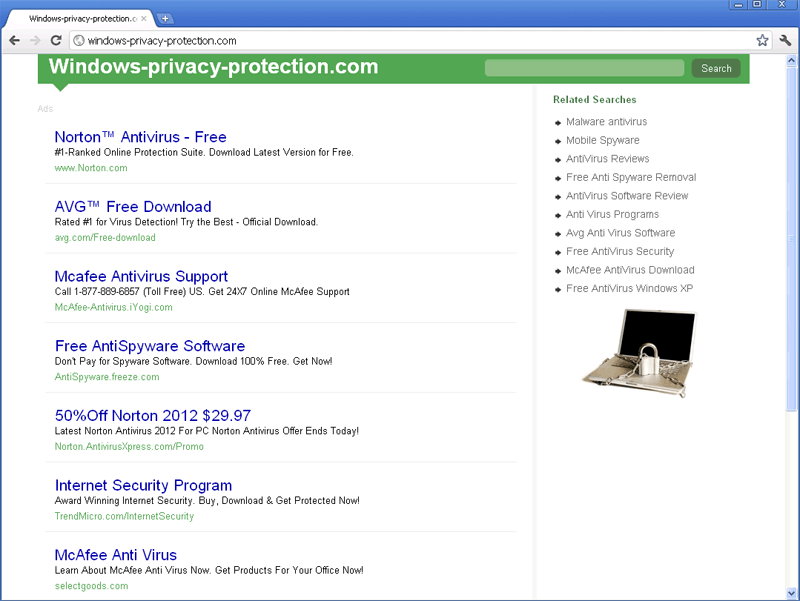 Windows-privacy-protection.com is a link farm website that pretends to offer search-relevant links while Windows-privacy-protection.com, instead, exposes you to irrelevant or even malicious websites. Besides this search-obfuscating behavior, Windows-privacy-protection.com has also been linked to browser hijackers that redirect you to Windows-privacy-protection.com and Windows-privacy-protection.com affiliates. SpywareRemove.com malware researchers recommend that you use a dedicated anti-malware program to remove a browser hijacker infection, as soon as you see signs of your browser being redirected to Windows-privacy-protection.com, since exposure to Windows-privacy-protection.com can cause long-term damage to your PC over time. Strong security settings for your web browser will also help to reduce the potential harm that Windows-privacy-protection.com and relates sites can cause to your PC through accidental exposure.
Windows-privacy-protection.com - a Site That Has Zero Interest in Your Protection or Privacy
Although Windows-privacy-protection.com's web address suggests that Windows-privacy-protection.com is a website for rogue anti-spyware programs like SpyMaxx, AntispyStorm 2008, SpyShredder or SpywareSecure, Windows-privacy-protection.com's current goal is to provide profit-generating links to commercialized and irrelevant websites. SpywareRemove.com malware experts have found that, like most sites that are affiliated with link farms, Windows-privacy-protection.com links have no useful content to offer visitors and aren't sorted to prevent exposure to malicious content.
As a result, contact with Windows-privacy-protection.com can cause your PC to be infected with rogue security programs (as noted above), browser hijackers that redirect your web browser to Windows-privacy-protection.com or other PC threats like viruses. Obviously, trying to use Windows-privacy-protection.com as a helpful online resource is a self-destructive idea, despite Windows-privacy-protection.com's attempts to market itself as a provider of spyware-removing programs, free college courses, credit reports and other types of useful goods and services.
What to Do When Windows-privacy-protection.com Insists That You Pay a Visit
Although SpywareRemove.com malware experts have noted that accidentally finding Windows-privacy-protection.com isn't likely for the average Internet-user, browser hijackers that are affiliated with Windows-privacy-protection.com and similar types of harmful sites have been known to redirect web browsers to Windows-privacy-protection.com without consent, thus vastly inflating Windows-privacy-protection.com's traffic. Browser-hijacking Trojans are most-frequently installed by dropper Trojans or by malicious scripts that are embedded in hostile sites (potentially including Windows-privacy-protection.com itself).
If you find that your web browser is displaying any of the following symptoms, SpywareRemove.com malware research team recommends that you immediately use a good anti-malware program to scan your PC:
- Redirects that take you to Windows-privacy-protection.com, even if you were trying to use an unrelated site.
- Homepage settings that are locked to Windows-privacy-protection.com.
- The appearance of Windows-privacy-protection.com whenever you open a new browser window or tab.
- The appearance of unusual threat windows, particularly those with advertisement-related content.
Nonetheless, as long as you remove the browser hijacker with a suitable anti-malware program, your PC shouldn't suffer any permanent damage from contact with Windows-privacy-protection.com.
File System Modifications
- The following files were created in the system:
# File Name 1 cfqbw.dll 2 fdpzgi.dll 3 gtawclv.dll 4 iesuninst.exe 5 isamini.exe 6 isamonitor.exe 7 khtbpdl.dll 8 pmmon.exe 9 pmsngr.exe 10 veptlh.dll 11 vjxwnn.dll 12 vmlwp.dll
Leave a Reply
Please note that we are not able to assist with billing and support issues regarding SpyHunter or other products. If you're having issues with SpyHunter, please get in touch with SpyHunter customer support through your SpyHunter . If you have SpyHunter billing questions, we recommend you check the Billing FAQ. For general suggestions or feedback, contact us.