Xorpix
Posted: December 13, 2006
Threat Metric
The Threat Meter is a malware assessment that SpywareRemove.com's research team is able to
give every identifiable malware threat. Our Threat Meter includes several criteria based off of
specific malware threats to value their severity, reach and volume. The Threat Meter is able to give
you a numerical breakdown of each threat's initial Threat Level, Detection Count, Volume Count,
Trend Path and Percentage Impact. The overall ranking of each threat in the Threat Meter is a basic
breakdown of how all threats are ranked within our own extensive malware database. The scoring for
each specific malware threat can be easily compared to other emerging threats to draw a contrast in
its particular severity. The Threat Meter is a useful tool in the endeavor of seeking a solution to
remove a threat or pursue additional analytical research for all types of computer users.
The following fields listed on the Threat Meter containing a specific value, are explained in detail below:
Threat Level: The threat level scale goes from 1 to 10 where 10 is the highest level of severity and 1 is the lowest level of severity. Each specific level is relative to the threat's consistent assessed behaviors collected from SpyHunter's risk assessment model.
Detection Count: The collective number of confirmed and suspected cases of a particular malware threat. The detection count is calculated from infected PCs retrieved from diagnostic and scan log reports generated by SpyHunter.
Volume Count: Similar to the detection count, the Volume Count is specifically based on the number of confirmed and suspected threats infecting systems on a daily basis. High volume counts usually represent a popular threat but may or may not have infected a large number of systems. High detection count threats could lay dormant and have a low volume count. Criteria for Volume Count is relative to a daily detection count.
Trend Path: The Trend Path, utilizing an up arrow, down arrow or equal symbol, represents the level of recent movement of a particular threat. Up arrows represent an increase, down arrows represent a decline and the equal symbol represent no change to a threat's recent movement.
% Impact (Last 7 Days): This demonstrates a 7-day period change in the frequency of a malware threat infecting PCs. The percentage impact correlates directly to the current Trend Path to determine a rise or decline in the percentage.
The following fields listed on the Threat Meter containing a specific value, are explained in detail below:
Threat Level: The threat level scale goes from 1 to 10 where 10 is the highest level of severity and 1 is the lowest level of severity. Each specific level is relative to the threat's consistent assessed behaviors collected from SpyHunter's risk assessment model.
Detection Count: The collective number of confirmed and suspected cases of a particular malware threat. The detection count is calculated from infected PCs retrieved from diagnostic and scan log reports generated by SpyHunter.
Volume Count: Similar to the detection count, the Volume Count is specifically based on the number of confirmed and suspected threats infecting systems on a daily basis. High volume counts usually represent a popular threat but may or may not have infected a large number of systems. High detection count threats could lay dormant and have a low volume count. Criteria for Volume Count is relative to a daily detection count.
Trend Path: The Trend Path, utilizing an up arrow, down arrow or equal symbol, represents the level of recent movement of a particular threat. Up arrows represent an increase, down arrows represent a decline and the equal symbol represent no change to a threat's recent movement.
% Impact (Last 7 Days): This demonstrates a 7-day period change in the frequency of a malware threat infecting PCs. The percentage impact correlates directly to the current Trend Path to determine a rise or decline in the percentage.
| Threat Level: | 9/10 |
|---|---|
| Infected PCs: | 52 |
| First Seen: | July 24, 2009 |
|---|---|
| Last Seen: | February 13, 2023 |
| OS(es) Affected: | Windows |
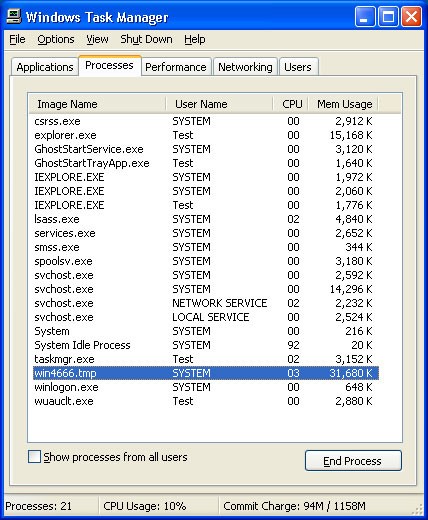 Xorpix is designed to infiltrate your computer and open a conduit by which large amounts of adware and spyware can be piped to your system. Xorpix opens up a large security hole on your computer and is a very dangerous threat to the security of your personal and financial data. Xorpix installs as a hidden system file and can be extremely difficult to manually remove.
Technical Details
File System Modifications
Tutorials: If you wish to learn how to remove malware components manually, you can read the tutorials on how to find malware, kill unwanted processes, remove malicious DLLs and delete other harmful files. Always be sure to back up your PC before making any changes.
The following files were created in the system:winsys2f.dll
File name: winsys2f.dllSize: 14.41 KB (14411 bytes)
MD5: 987bbcf9dd14eb223f74d0f34c444c15
Detection count: 73
File type: Dynamic link library
Mime Type: unknown/dll
Group: Malware file
Last Updated: December 11, 2009
vedxga4me1.exe
File name: vedxga4me1.exeSize: 17.4 KB (17408 bytes)
MD5: b3528fb06058f99d2f206c77ecfe92d2
Detection count: 71
File type: Executable File
Mime Type: unknown/exe
Group: Malware file
Last Updated: December 11, 2009
artm_new.dll
File name: artm_new.dllSize: 21.01 KB (21018 bytes)
MD5: afb46df7318a8b261f85009ff8eaa097
Detection count: 60
File type: Dynamic link library
Mime Type: unknown/dll
Group: Malware file
Last Updated: December 11, 2009
dbf43.dll
File name: dbf43.dllSize: 14.39 KB (14396 bytes)
MD5: 0e486e1f060de38bdb2840f2e0074978
Detection count: 45
File type: Dynamic link library
Mime Type: unknown/dll
Group: Malware file
Last Updated: December 11, 2009
malware.exe
File name: malware.exeSize: 18.43 KB (18432 bytes)
MD5: 89737e55dae31239384a82baf34cd8f6
Detection count: 15
File type: Executable File
Mime Type: unknown/exe
Group: Malware file
Last Updated: December 11, 2009
E:\Folder 02\VirusShare_148ca99b348a4491cd8d9f1ce8ec8ca1
File name: VirusShare_148ca99b348a4491cd8d9f1ce8ec8ca1Size: 16.41 KB (16415 bytes)
MD5: 148ca99b348a4491cd8d9f1ce8ec8ca1
Detection count: 14
Path: E:\Folder 02\VirusShare_148ca99b348a4491cd8d9f1ce8ec8ca1
Group: Malware file
Last Updated: January 10, 2022
KB62062812.exe, KB70001783.exe, KB74388100.exe
File name: KB62062812.exe, KB70001783.exe, KB74388100.exeSize: 19.45 KB (19456 bytes)
MD5: 18c38b2956fad921dcd69a866315a7f1
Detection count: 5
File type: Executable File
Mime Type: unknown/exe
Group: Malware file
Last Updated: December 11, 2009
More files
Registry Modifications
The following newly produced Registry Values are:
Run keysMicrosoft Office
Run keysMicrosoft Office
Leave a Reply
Please note that we are not able to assist with billing and support issues regarding SpyHunter or other products. If you're having issues with SpyHunter, please get in touch with SpyHunter customer support through your SpyHunter . If you have SpyHunter billing questions, we recommend you check the Billing FAQ. For general suggestions or feedback, contact us.