PCTotalDefender
Posted: July 8, 2008
Threat Metric
The following fields listed on the Threat Meter containing a specific value, are explained in detail below:
Threat Level: The threat level scale goes from 1 to 10 where 10 is the highest level of severity and 1 is the lowest level of severity. Each specific level is relative to the threat's consistent assessed behaviors collected from SpyHunter's risk assessment model.
Detection Count: The collective number of confirmed and suspected cases of a particular malware threat. The detection count is calculated from infected PCs retrieved from diagnostic and scan log reports generated by SpyHunter.
Volume Count: Similar to the detection count, the Volume Count is specifically based on the number of confirmed and suspected threats infecting systems on a daily basis. High volume counts usually represent a popular threat but may or may not have infected a large number of systems. High detection count threats could lay dormant and have a low volume count. Criteria for Volume Count is relative to a daily detection count.
Trend Path: The Trend Path, utilizing an up arrow, down arrow or equal symbol, represents the level of recent movement of a particular threat. Up arrows represent an increase, down arrows represent a decline and the equal symbol represent no change to a threat's recent movement.
% Impact (Last 7 Days): This demonstrates a 7-day period change in the frequency of a malware threat infecting PCs. The percentage impact correlates directly to the current Trend Path to determine a rise or decline in the percentage.
| Threat Level: | 10/10 |
|---|---|
| Infected PCs: | 89 |
| First Seen: | July 24, 2009 |
|---|---|
| OS(es) Affected: | Windows |
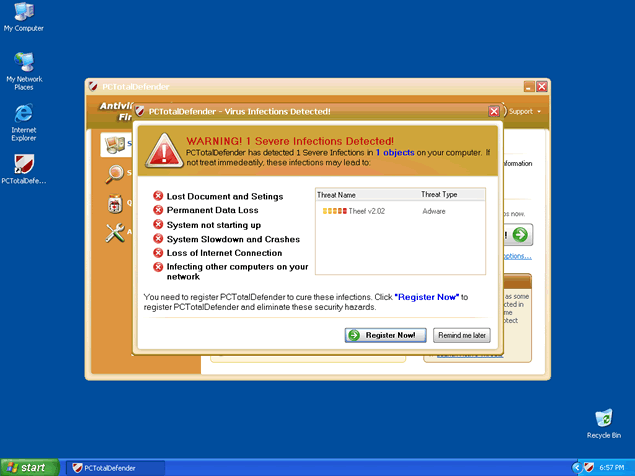
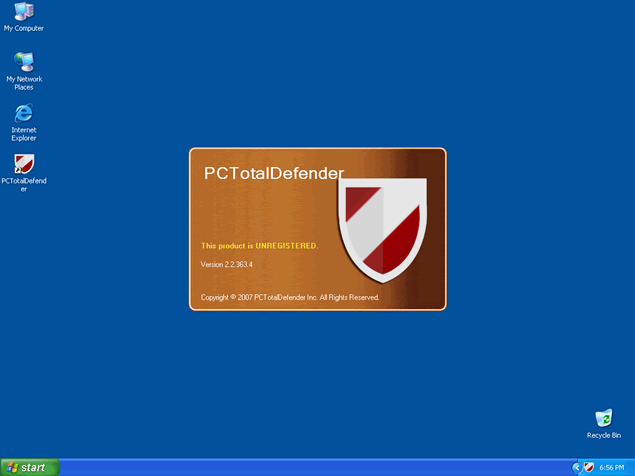
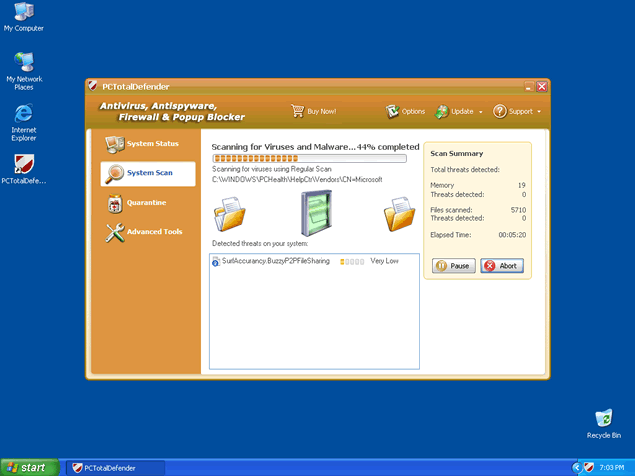 PCTotalDefender, also known as PC Total Defender, is a rogue anti-spyware program related to AntiSpywareMaster, Antispywaresuite, AntivirusForAll, AVsystemcare and WinSecureAv, just to mention a few. PCTotalDefender infects your computer system with the help of Trojans (such as Zlob or Vundo), that may have come bundled in a fake video codec download. As soon as PCTotalDefender installs in your computer, it will use it's fake system scanner to display false positives which work as an incentive to push you to buy PCTotalDefender's "licensed" version. PCTotalDefender's displays may be titled: "System Status: Your system is not fully protected".
PCTotalDefender will also prompt bogus popups and system notifications. Do not click on any link provided by PCTotalDefender. If you click on the link provided, you'll be redirected to PCTotalDefender's website or to another rogue website where you'll be encouraged to purchase PCTotalDefender's rogue anti-spyware program.
Aliases
More aliases (23)
Technical Details
File System Modifications
Tutorials: If you wish to learn how to remove malware components manually, you can read the tutorials on how to find malware, kill unwanted processes, remove malicious DLLs and delete other harmful files. Always be sure to back up your PC before making any changes.
The following files were created in the system:sbiebho.dll
File name: sbiebho.dllSize: 1.1 MB (1103360 bytes)
MD5: 8f9cbfa2a22609e7ac413124da4b077c
Detection count: 75
File type: Dynamic link library
Mime Type: unknown/dll
Group: Malware file
Last Updated: December 11, 2009
reload.exe
File name: reload.exeSize: 53.24 KB (53248 bytes)
MD5: 409ccc7b2fab48bb69bd8e95932fde48
Detection count: 71
File type: Executable File
Mime Type: unknown/exe
Group: Malware file
Last Updated: December 11, 2009
setup.exe
File name: setup.exeSize: 15.84 MB (15840064 bytes)
MD5: 8881bbc2f62105ce5cf48b766eeb3906
Detection count: 70
File type: Executable File
Mime Type: unknown/exe
Group: Malware file
Last Updated: December 11, 2009
antivirusinstallfree_en[1].exe
File name: antivirusinstallfree_en[1].exeSize: 232.76 KB (232768 bytes)
MD5: d558c4f24c13232e11b43684da18e7b1
Detection count: 51
File type: Executable File
Mime Type: unknown/exe
Group: Malware file
Last Updated: December 11, 2009
rmd-.dll
File name: rmd-.dllSize: 44.03 KB (44032 bytes)
MD5: 75f82e5e7956d75f4b0666ccc9a39131
Detection count: 36
File type: Dynamic link library
Mime Type: unknown/dll
Group: Malware file
Last Updated: December 11, 2009
pctdf.exe
File name: pctdf.exeSize: 195.07 KB (195072 bytes)
MD5: b856c7d84c9635dc449bdc6a5e80a386
Detection count: 26
File type: Executable File
Mime Type: unknown/exe
Group: Malware file
Last Updated: December 11, 2009
Res~uavsetup.exe
File name: Res~uavsetup.exeSize: 15.79 MB (15790939 bytes)
MD5: 9ea12b7ec18c75f4d2b0a452805404e4
Detection count: 2
File type: Executable File
Mime Type: unknown/exe
Group: Malware file
Last Updated: December 11, 2009
I can't down load any think pc total defender is blocking all down loads
Feb. 25, 2010
I can't do anything with my computer PC Defender has locked the screen, can't download anything.