Starware
Posted: April 2, 2005
Threat Metric
The Threat Meter is a malware assessment that SpywareRemove.com's research team is able to
give every identifiable malware threat. Our Threat Meter includes several criteria based off of
specific malware threats to value their severity, reach and volume. The Threat Meter is able to give
you a numerical breakdown of each threat's initial Threat Level, Detection Count, Volume Count,
Trend Path and Percentage Impact. The overall ranking of each threat in the Threat Meter is a basic
breakdown of how all threats are ranked within our own extensive malware database. The scoring for
each specific malware threat can be easily compared to other emerging threats to draw a contrast in
its particular severity. The Threat Meter is a useful tool in the endeavor of seeking a solution to
remove a threat or pursue additional analytical research for all types of computer users.
The following fields listed on the Threat Meter containing a specific value, are explained in detail below:
Threat Level: The threat level scale goes from 1 to 10 where 10 is the highest level of severity and 1 is the lowest level of severity. Each specific level is relative to the threat's consistent assessed behaviors collected from SpyHunter's risk assessment model.
Detection Count: The collective number of confirmed and suspected cases of a particular malware threat. The detection count is calculated from infected PCs retrieved from diagnostic and scan log reports generated by SpyHunter.
Volume Count: Similar to the detection count, the Volume Count is specifically based on the number of confirmed and suspected threats infecting systems on a daily basis. High volume counts usually represent a popular threat but may or may not have infected a large number of systems. High detection count threats could lay dormant and have a low volume count. Criteria for Volume Count is relative to a daily detection count.
Trend Path: The Trend Path, utilizing an up arrow, down arrow or equal symbol, represents the level of recent movement of a particular threat. Up arrows represent an increase, down arrows represent a decline and the equal symbol represent no change to a threat's recent movement.
% Impact (Last 7 Days): This demonstrates a 7-day period change in the frequency of a malware threat infecting PCs. The percentage impact correlates directly to the current Trend Path to determine a rise or decline in the percentage.
The following fields listed on the Threat Meter containing a specific value, are explained in detail below:
Threat Level: The threat level scale goes from 1 to 10 where 10 is the highest level of severity and 1 is the lowest level of severity. Each specific level is relative to the threat's consistent assessed behaviors collected from SpyHunter's risk assessment model.
Detection Count: The collective number of confirmed and suspected cases of a particular malware threat. The detection count is calculated from infected PCs retrieved from diagnostic and scan log reports generated by SpyHunter.
Volume Count: Similar to the detection count, the Volume Count is specifically based on the number of confirmed and suspected threats infecting systems on a daily basis. High volume counts usually represent a popular threat but may or may not have infected a large number of systems. High detection count threats could lay dormant and have a low volume count. Criteria for Volume Count is relative to a daily detection count.
Trend Path: The Trend Path, utilizing an up arrow, down arrow or equal symbol, represents the level of recent movement of a particular threat. Up arrows represent an increase, down arrows represent a decline and the equal symbol represent no change to a threat's recent movement.
% Impact (Last 7 Days): This demonstrates a 7-day period change in the frequency of a malware threat infecting PCs. The percentage impact correlates directly to the current Trend Path to determine a rise or decline in the percentage.
| Ranking: | 6,450 |
|---|---|
| Threat Level: | 2/10 |
| Infected PCs: | 201,657 |
| First Seen: | July 24, 2009 |
|---|---|
| Last Seen: | March 10, 2025 |
| OS(es) Affected: | Windows |
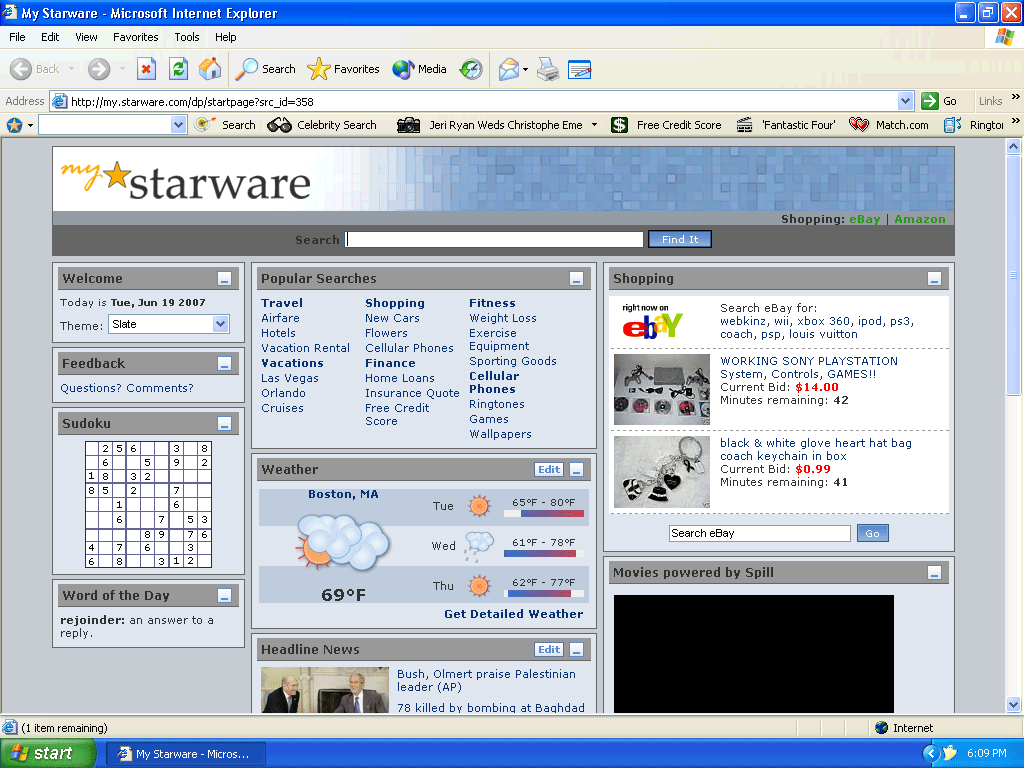 Starware is an Internet Explorer toolbar with specialized search functions and a pop-up blocker. Starware Toolbar may display advertisements and redirect your search requests through their parent server. Bug fixes and new features may be added to Starware Toolbar without your notice.
www.Starware.com
Aliases
Generic.NDY [AVG]Win-AppCare/Xema.637440 [AhnLab-V3]AdWare/Win32.Comet.gen [Antiy-AVL]ADSPY/Comet.AW [AntiVir]UnclassifiedMalware [Comodo]Application.Generic.191194 [BitDefender]not-a-virus:AdWare.Win32.Comet.aw [Kaspersky]Win32:Spyware-gen [Spy] [Avast]W32/Adware.OXG [F-Prot]a variant of Win32/Adware.Comet [NOD32]WStudio.dll [McAfee]Program.Starware (Not a Virus) [CAT-QuickHeal]Adware Generic.NSG [AVG]Adware.Comet [eWido]Generic.Malware [Prevx1]
More aliases (106)
More aliases (106)
Technical Details
File System Modifications
Tutorials: If you wish to learn how to remove malware components manually, you can read the tutorials on how to find malware, kill unwanted processes, remove malicious DLLs and delete other harmful files. Always be sure to back up your PC before making any changes.
The following files were created in the system:jokes[1].exe
File name: jokes[1].exeSize: 534.61 KB (534616 bytes)
MD5: 5f4dd3768c5997446bfaed696a074f75
Detection count: 91
File type: Executable File
Mime Type: unknown/exe
Group: Malware file
Last Updated: December 11, 2009
Starware316Uninstall.exe
File name: Starware316Uninstall.exeSize: 49.51 KB (49514 bytes)
MD5: 9d5db08c0a78247fc4c71f4cc5f3208e
Detection count: 73
File type: Executable File
Mime Type: unknown/exe
Group: Malware file
Last Updated: December 11, 2009
Starware316.dll
File name: Starware316.dllSize: 803.32 KB (803328 bytes)
MD5: 32e690f3964320bc19e250d3272a8d06
Detection count: 61
File type: Dynamic link library
Mime Type: unknown/dll
Group: Malware file
Last Updated: December 11, 2009
Starware358.dll
File name: Starware358.dllSize: 802.81 KB (802816 bytes)
MD5: 6db09696f76ddcdd832d034d72340477
Detection count: 40
File type: Dynamic link library
Mime Type: unknown/dll
Group: Malware file
Last Updated: December 11, 2009
recipes[1].exe
File name: recipes[1].exeSize: 526.79 KB (526792 bytes)
MD5: 6d142e22c201b7fe1b8f137d53cdff83
Detection count: 36
File type: Executable File
Mime Type: unknown/exe
Group: Malware file
Last Updated: December 11, 2009
%PROGRAMFILES%\Starware349\bin\Starware349.dll
File name: Starware349.dllSize: 793.08 KB (793088 bytes)
MD5: e6233313e00032e729a6df62198b594d
Detection count: 36
File type: Dynamic link library
Mime Type: unknown/dll
Path: %PROGRAMFILES%\Starware349\bin
Group: Malware file
Last Updated: December 6, 2010
Starware386.dll
File name: Starware386.dllSize: 803.32 KB (803328 bytes)
MD5: d2b03fdcbece63f144f2156f8caeb25d
Detection count: 31
File type: Dynamic link library
Mime Type: unknown/dll
Group: Malware file
Last Updated: December 11, 2009
entertainment[1].exe
File name: entertainment[1].exeSize: 513.82 KB (513824 bytes)
MD5: 877f205fa2860825df14b7177860b839
Detection count: 30
File type: Executable File
Mime Type: unknown/exe
Group: Malware file
Last Updated: December 11, 2009
%PROGRAMFILES%\Starware\bin\Starware.dll
File name: Starware.dllSize: 636.92 KB (636928 bytes)
MD5: 549f7f13cc4e607d961c3667a5c62b5e
Detection count: 22
File type: Dynamic link library
Mime Type: unknown/dll
Path: %PROGRAMFILES%\Starware\bin
Group: Malware file
Last Updated: May 21, 2012
More files
Registry Modifications
The following newly produced Registry Values are:
CLSID{2D51D869-C36B-42bd-AE68-0A81BC771FA5}{7BED0340-176B-44bc-915E-C21C1DD6F617}{D49E9D35-254C-4c6a-9D17-95018D228FF5}
CLSID{2D51D869-C36B-42bd-AE68-0A81BC771FA5}{7BED0340-176B-44bc-915E-C21C1DD6F617}{D49E9D35-254C-4c6a-9D17-95018D228FF5}
Additional Information
The following directories were created:
%ALLUSERSPROFILE%\Starware347%AppData%\Starware337%AppData%\Starware347%PROGRAMFILES%\Starware347%PROGRAMFILES(x86)%\Starware316%PROGRAMFILES(x86)%\Starware337%PROGRAMFILES(x86)%\Starware347%ProgramFiles%\Starware316%ProgramFiles%\Starware337
The following cookies were detected:
starware
program looks good so far,I'll try it out
Can you please tell me how to uninstall the starware programe as i can not find it in my add/remove folder . Thank You P. Smith
I am trying to remove "Ultimate Defender" PC cleaner. FV
paul smith,
Spyware programs are different from other programs because they tend to hide themselves and you won't find them on add/remove folder. Follow the Starware Manual Removal Instructions which you'll find above. If you'll find difficult to remove Starware manually, I suggest you to use anti-spyware program.
Frank Volpe,
Go to the Ultimate Defender page http://www.spywareremove.com/removeUltimateDefender.html and there you'll find Ultimate Defender removal information.
Hello, I notice starware show on my family computer and I notice recent searches and they were nudity searches. I do have teen boys and I want to know how do I get rid of these recent searches. It's so embarassing....I have band them from the computer until fiurther notice. My question is: HOW DO I REMOVE RECENT SEARCHES? Please help me Thank you DESPRITE MOM Single mom with two teen boys...I will put a block on please please help me.
hello, i want to remove the starware toolbar in my desctop, but its difficult for me because my computer is mix of korean language, and i dont undersstand. and im not a korean. i'm just working here in korea. so will you help me? please...
please remove my starware thanks
martin agius,
Scan your computer with our Free SpyHunter scanner, which will detect the infected files and show the locations of them. Afterwards, boot your computer in Safe Mode and delete the infected files.
your website so good. i like work with the help of ur website. thanks for that regards anish rawat
Hello, star war has taken over my computer haw can I escape (remove)it ? Regards/Diana
Why can't someone publish the names and addresses of the criminals who put out the malware like Windows Police Pro. They take credit cards, so they can be tracked down. With some info on the miscreants, those infected can take legal action or self-help as appropriate.